<?xml version="1.0" encoding="UTF-8"?>
<?xml-stylesheet type="text/xsl" media="screen" href="/~d/styles/rss2full.xsl"?><?xml-stylesheet type="text/css" media="screen" href="http://feeds.feedburner.com/~d/styles/itemcontent.css"?><rss xmlns:content="http://purl.org/rss/1.0/modules/content/" xmlns:wfw="http://wellformedweb.org/CommentAPI/" xmlns:dc="http://purl.org/dc/elements/1.1/" xmlns:atom="http://www.w3.org/2005/Atom" xmlns:sy="http://purl.org/rss/1.0/modules/syndication/" xmlns:slash="http://purl.org/rss/1.0/modules/slash/" xmlns:creativeCommons="http://backend.userland.com/creativeCommonsRssModule" version="2.0">

<channel>
	<title>Peltier Tech Blog</title>
	
	<link>http://peltiertech.com/WordPress</link>
	<description>Peltier Tech Excel Charts and Programming Blog</description>
	<lastBuildDate>Mon, 20 May 2013 19:52:05 +0000</lastBuildDate>
	<language>en-US</language>
	<sy:updatePeriod>hourly</sy:updatePeriod>
	<sy:updateFrequency>1</sy:updateFrequency>
	<generator>http://wordpress.org/?v=3.5.1</generator>
		<atom10:link xmlns:atom10="http://www.w3.org/2005/Atom" rel="self" type="application/rss+xml" href="http://feeds.feedburner.com/peltiertech/EsrO" /><feedburner:info xmlns:feedburner="http://rssnamespace.org/feedburner/ext/1.0" uri="peltiertech/esro" /><atom10:link xmlns:atom10="http://www.w3.org/2005/Atom" rel="hub" href="http://pubsubhubbub.appspot.com/" /><creativeCommons:license>http://creativecommons.org/licenses/by-nc-sa/2.0/</creativeCommons:license><image><link>http://peltiertech.com/WordPress/</link><url>http://peltiertech.com/WordPress/wp-content/PTSlogoSmall.png</url><title>Peltier Technical Services, Inc.</title></image><feedburner:emailServiceId xmlns:feedburner="http://rssnamespace.org/feedburner/ext/1.0">peltiertech/EsrO</feedburner:emailServiceId><feedburner:feedburnerHostname xmlns:feedburner="http://rssnamespace.org/feedburner/ext/1.0">http://feedburner.google.com</feedburner:feedburnerHostname><item>
		<title>Announcing: Peltier Tech Chart Utility</title>
		<link>http://peltiertech.com/WordPress/announcing-peltier-tech-chart-utility/</link>
		<comments>http://peltiertech.com/WordPress/announcing-peltier-tech-chart-utility/#comments</comments>
		<pubDate>Mon, 15 Apr 2013 03:55:46 +0000</pubDate>
		<dc:creator>Jon Peltier</dc:creator>
				<category><![CDATA[Utilities]]></category>

		<guid isPermaLink="false">http://peltiertech.com/WordPress/?p=3510</guid>
		<description>After months of development, and weeks of frantic testing and fixing and documenting, it&amp;#8217;s finally here: The Peltier Tech Chart Utility Six weeks ago I promised that it was coming. I thought it was two weeks away, but I kept thinking of ways to improve it, and I kept finding those last little dumb things [...]</description>
				<content:encoded><![CDATA[<p>After months of development, and weeks of frantic testing and fixing and documenting, it&#8217;s finally here:</p>
<p><a title="Peltier Tech Chart Utility" href="http://peltiertech.com/Utility20/PeltierTechUtility.html">The Peltier Tech Chart Utility</a></p>
<p>Six weeks ago I promised that it was coming. I thought it was two weeks away, but I kept thinking of ways to improve it, and I kept finding those last little dumb things that needed fixing.</p>
<p>This utility rolls together most of the existing Peltier Tech chart drawing tools, which are being retired, and adds quite a few nice chart formatting and manipulating tools as well. It runs in Excel 2013, for which the old ones were not designed.</p>
<p>Here&#8217;s a quick look at the new Peltier Tech ribbon tab (click for a full size view in a new browser tab):</p>
<p style="text-align: center;"><a title="Peltier Tech Utility Ribbon Tab" href="http://peltiertech.com/images/2013-04/PeltierTechUtilityBanner.png" target="_blank"><img class="aligncenter" alt="Peltier Tech Utility Ribbon" src="http://peltiertech.com/images/2013-04/PeltierTechUtilityBannerReduc.png" width="674" height="196" /></a></p>
<p> The utility draws a number of custom charts, including two types of waterfall, plus clustered-stacked bars or columns, Marimekkos, cascade charts, boxplots, dot plots, and XY scatter charts from a variety of data layouts. There are a number of helpful tools, most taken from the pages of this blog: series formula editing, labeling, exporting, and so on. For more details, go to <a title="Peltier Tech Chart Utility" href="http://peltiertech.com/Utility20/PeltierTechUtility.html">The Peltier Tech Chart Utility</a>, check out the <a title="Frequently Asked Questions" href="http://peltiertech.com/Utility20/Documentation20/FAQ.html">Frequently Asked Questions</a>, or read the documentation, <a title="Using the Peltier Tech Utility (PDF)" href="http://peltiertech.com/Utility20/Documentation20/Using_the_Peltier_Tech_Utility.pdf" target="_blank">Using the Peltier Tech Utility (PDF)</a>.</p>
<p>The list price of this new utility is $79US. Discounts will be applied as before to purchases of multiple licenses. Also, users of the existing utilities will get discounts. If you paid the regular list price of $49US for one utility, your upgrade to the new utility will be priced at $40. If you have licensed more than one of the old utilities, you will receive a larger discount; if your license was older and cost less, your discount will not be as large. <a title="Peltier Tech" href="mailto:jon@peltiertech.com" target="_blank">Email Peltier Tech</a> to get a discount code to enter at checkout, or make your purchase now and email me afterwards, and I&#8217;ll apply a discount to your transaction.</p>
<p>This is the &#8220;Standard&#8221; version of the new utility: there are a couple more versions in the works. The next version (&#8220;Advanced&#8221;) has all this, plus another 6 to 8 chart types and several additional tools. The final version (&#8220;DeLuxe&#8221;) will have 6 to 8 more chart types and more goodies. I can&#8217;t pretend to know when these will be available, later this spring and into summer. Don&#8217;t wait for them. If you license the standard version now, the upgrades to the Advanced and DeLuxe versions will cost the difference in their respective prices.
<p>Peltier Technical Services, Inc., Copyright © 2011.<br /> <br /><span style="font: 80% Verdana,Tahoma,Arial,sans-serif;">Licensed under a <a rel="license" href="http://creativecommons.org/licenses/by-nc-sa/3.0/">Creative Commons Attribution-Noncommercial-Share Alike 3.0 Unported License</a>.<br /> <br />
<a href="http://peltiertech.com/Utility/" title="PTS Chart Utilities: Waterfall, Cluster-Stack Column, Box and Whisker, Marimekko"><img src="http://peltiertech.com/Utility/pix/pts_banner_map.png" alt="PTS Chart Utilities: Waterfall, Box and Whisker, Cluster-Stack, Panel, Marimekko, Dot, Panel" border="0" /></a></p>
<div class="feedflare">
<a href="http://feeds.feedburner.com/~ff/peltiertech/EsrO?a=RqH7UYyrYos:oG4WgAmlZZs:yIl2AUoC8zA"><img src="http://feeds.feedburner.com/~ff/peltiertech/EsrO?d=yIl2AUoC8zA" border="0"></img></a>
</div><img src="http://feeds.feedburner.com/~r/peltiertech/EsrO/~4/RqH7UYyrYos" height="1" width="1"/>]]></content:encoded>
			<wfw:commentRss>http://peltiertech.com/WordPress/announcing-peltier-tech-chart-utility/feed/</wfw:commentRss>
		<slash:comments>3</slash:comments>
		</item>
		<item>
		<title>Intelligent Excel 2013 XY Charts</title>
		<link>http://peltiertech.com/WordPress/intelligent-excel-2013-xy-charts/</link>
		<comments>http://peltiertech.com/WordPress/intelligent-excel-2013-xy-charts/#comments</comments>
		<pubDate>Mon, 18 Feb 2013 08:00:03 +0000</pubDate>
		<dc:creator>Jon Peltier</dc:creator>
				<category><![CDATA[General]]></category>
		<category><![CDATA[Excel 2013]]></category>
		<category><![CDATA[XY Charts]]></category>

		<guid isPermaLink="false">http://peltiertech.com/WordPress/?p=3503</guid>
		<description>While writing last week&amp;#8217;s introductory article about Excel 2013 charting, My First Excel 2013 Chart, I discovered a very cool bit of intelligence built into the function that inserts XY charts. In prior versions of Excel, if you selected a rectangular range with N columns and inserted an XY chart with data in columns, the [...]</description>
				<content:encoded><![CDATA[<p>While writing last week&#8217;s introductory article about Excel 2013 charting, <a title="My First Excel 2013 Chart" href="http://peltiertech.com/WordPress/my-first-excel-2013-chart/">My First Excel 2013 Chart</a>, I discovered a very cool bit of intelligence built into the function that inserts XY charts.</p>
<p>In prior versions of Excel, if you selected a rectangular range with N columns and inserted an XY chart with data in columns, the chart would use the first column for the X values, and the other columns for Y values for N-1 series. If your series didn&#8217;t all use the same X values, you had to define each series separately.</p>
<p>While playing with the Insert Chart dialogs, I discovered that Excel 2013 will offer several additional options if the data is arranged a certain way.</p>
<p>I&#8217;ll illustrate this coolness with the following data. There is an 8&#215;8 grid of numerical data, with text labels (Greek letter names) in the row above the grid, and text labels (Latin letters) in the column to the left of the grid. Thedata is better suited for a line or bar chart because of the non-numerical categories in the first row and column.</p>
<p style="text-align: center;"><img class="aligncenter" alt="Dumb data to show smart behavior" src="../../images/2013-02/DumbXYData.png" width="660" height="236" /></p>
<p>On the Insert tab, click on the XY Chart icon and you&#8217;ll see this dropdown.</p>
<p style="text-align: center;"><img class="aligncenter" alt="XY Chart dropdown on Excel 2013 Insert ribbon tab" src="../../images/2013-02/2013InsertChartsXYDropdown.png" width="307" height="335" /></p>
<p>Click on &#8220;More Scatter Charts&#8221; at the bottom, and you&#8217;ll see this dialog.</p>
<p style="text-align: center;"><img class="aligncenter" alt="Excel 2013 XY Charts dialog" src="../../images/2013-02/2013XYCharts.png" width="660" height="511" /></p>
<p>There are thumbnails for three options, which will be discussed shortly.</p>
<p>If you mouse over any of the options, you&#8217;ll see a preview of how that chart would look. Double clicking on the thumbnail or preview inserts the chart into the worksheet.</p>
<p style="text-align: center;"><img class="aligncenter" alt="Excel 2013 XY Charts dialog with mouseover view" src="../../images/2013-02/2013XYChartMouseOver.png" width="660" height="542" /></p>
<p>The first XY chart option is what you would get in prior versions of Excel. The first column is used for the X values, and the other N-1 columns are the Y values. In this case, the first column contains text labels, which an XY chart cannot accommodate, so it uses the counting numbers 1, 2, 3, etc. instead.</p>
<p style="text-align: center;"><img class="aligncenter" alt="Excel 2013 Default XY Chart" src="../../images/2013-02/2013DefaultXYChart.png" width="654" height="546" /></p>
<p>The second option available in this case shows one of the intelligent behaviors. Excel realizes that the first column doesn&#8217;t contain numerical values, so it ignores that column, and makes a chart with the number in the rest of the data range. The first numerical column is used for X, and the rest for Y.</p>
<p style="text-align: center;"><img class="aligncenter" alt="Excel 2013 Smart XY Chart" src="../../images/2013-02/2013SmartXYChart.png" width="654" height="546" /></p>
<p>I tested this with one, two, and three leading columns of non-numerical data, and Excel ignored them all. Presumably it will ignore any arbitrary number of leading columns of text.</p>
<p>That&#8217;s pretty smart. But the next trick, as we say here in Baaston, is &#8220;wicked smaat&#8221;.</p>
<p>Many times I&#8217;ve been asked how to select a range with alternating X and Y values and create an XY chart with one series for each pair of columns. In <a title="Quick Chart VBA Examples" href="http://peltiertech.com/Excel/ChartsHowTo/QuickChartVBA.html">Quick Chart VBA Examples</a> I presented code that parses such a range and spits out the desired chart. In that tutorial I showed how to process several different arrangements of X and Y, including alternating X and Y columns.</p>
<p>If your usable numerical data is contained in an even number of columns (either standalone, or with some data ignored as above), Excel will give you the option to treat the data as alternating columns of X and Y data. The result is this Wicked Smaat XY Chaat:</p>
<p style="text-align: center;"><img class="aligncenter" alt="Excel 2013 Wicked Smart XY Chart" src="../../images/2013-02/2013WickedSmartXYChart.png" width="654" height="546" /></p>
<p>When the chart is selected, there is no highlighted data range, because the chart&#8217;s data is &#8220;too complicated&#8221; to display. This is because the series don&#8217;t share their X values.</p>
<p>If you select the first series, however, you can see that it uses the first column of the range for X and the second for Y.</p>
<p style="text-align: center;"><img class="aligncenter" alt="Series 1 highlighted data" src="../../images/2013-02/2013WickedSmartXYSeries1.png" width="654" height="546" /></p>
<p>And if you select the second series, you can see that it uses the third column of the range for X and the fourth for Y. And so on, for the rest of the series i the chart.</p>
<p style="text-align: center;"><img class="aligncenter" alt="Series 2 highlighted data" src="../../images/2013-02/2013WickedSmartXYSeries2.png" width="654" height="546" /></p>
<p>I discovered this intelligent behavior by accident, using some arbitrary data from a totally different example. But knowing about this intelligence, I can design a data range to take advantage of it.</p>
<p>Here is an even number of columns of numerical data, alternating X and Y values.</p>
<p style="text-align: center;"><img class="aligncenter" alt="Data intentionally laid out for Excel 2013 Smart XY Chart" src="../../images/2013-02/2013SmartXYData.png" width="415" height="205" /></p>
<p>Here&#8217;s my wicked smart XY chart created using this data. The default formatting has markers but no lines.</p>
<p style="text-align: center;"><img class="aligncenter" alt="Excel 2013 Smart XY Chart with markers only" src="../../images/2013-02/2013XYSmartDots.png" width="383" height="279" /></p>
<p>You can use the Change Chart Type feature to change from a markers-only to a lines-and-markers format.</p>
<p style="text-align: center;"><img class="aligncenter" alt="Excel 2013 Smart XY Chart with markers and lines" src="../../images/2013-02/2013XYSmartLines.png" width="383" height="279" /></p>
<p>A lot of people are going to be very happy with this new functionality.
<p>Peltier Technical Services, Inc., Copyright © 2011.<br /> <br /><span style="font: 80% Verdana,Tahoma,Arial,sans-serif;">Licensed under a <a rel="license" href="http://creativecommons.org/licenses/by-nc-sa/3.0/">Creative Commons Attribution-Noncommercial-Share Alike 3.0 Unported License</a>.<br /> <br />
<A HREF="http://www.exceluser.com/cmd.asp?Clk=1374689"><IMG SRC="http://www.exceluser.com/images/info/pub/info_dash_c02.gif" ALT="Learn how to create Excel dashboards." WIDTH="468" HEIGHT="60" border=0></A><br />
<br /><img src="http://www.exceluser.com/cmd.asp?Imp=1374689" width="0" height="0" border="0"></p>
<div class="feedflare">
<a href="http://feeds.feedburner.com/~ff/peltiertech/EsrO?a=Y2_a6-X5Djo:A41vH1wEWFU:yIl2AUoC8zA"><img src="http://feeds.feedburner.com/~ff/peltiertech/EsrO?d=yIl2AUoC8zA" border="0"></img></a>
</div><img src="http://feeds.feedburner.com/~r/peltiertech/EsrO/~4/Y2_a6-X5Djo" height="1" width="1"/>]]></content:encoded>
			<wfw:commentRss>http://peltiertech.com/WordPress/intelligent-excel-2013-xy-charts/feed/</wfw:commentRss>
		<slash:comments>6</slash:comments>
		</item>
		<item>
		<title>My First Excel 2013 Chart</title>
		<link>http://peltiertech.com/WordPress/my-first-excel-2013-chart/</link>
		<comments>http://peltiertech.com/WordPress/my-first-excel-2013-chart/#comments</comments>
		<pubDate>Thu, 14 Feb 2013 08:00:10 +0000</pubDate>
		<dc:creator>Jon Peltier</dc:creator>
				<category><![CDATA[Excel 2013]]></category>

		<guid isPermaLink="false">http://peltiertech.com/WordPress/?p=3501</guid>
		<description>This isn&amp;#8217;t really about my first Excel 2013 chart. I&amp;#8217;ve already made hundreds of charts in Excel 2013 over the past couple years, and I&amp;#8217;ve found a lot of nice enhancements over the last two versions. You could modify and format Excel 2003 charts much more efficiently, but with much less effort the charts in 2013 [...]</description>
				<content:encoded><![CDATA[<p>This isn&#8217;t really about my first Excel 2013 chart. I&#8217;ve already made hundreds of charts in Excel 2013 over the past couple years, and I&#8217;ve found a lot of nice enhancements over the last two versions. You could modify and format Excel 2003 charts much more efficiently, but with much less effort the charts in 2013 look nicer significantly nicer than those in 2007, and extremely nicer than typical Excel 2003 charts.</p>
<p>Let&#8217;s take a short stroll through Charting in Excel 2013.</p>
<p>These examples will use the following data. 8 rows and 8 columns of numerical values, plus a row of Greek letter names above and a column of Latin letters to the left of this grid.</p>
<p>Plus that all-holy blank cell in the top left, which will help any version of Excel parse the data into values, category labels, and series names.</p>
<p style="text-align: center;"><img class="aligncenter" alt="Sample data" src="../../images/2013-02/FirstData.png" width="654" height="237" /></p>
<p>Select one cell or the whole data range, and click on the Insert tab. Here it&#8217;s been shrunk to fit, but click on it and you&#8217;ll see it full size in a new browser tab.</p>
<p style="text-align: center;"><a title="Insert tab on Excel 2013 ribbon" href="../../images/2013-02/2013InsertTab.png" target="_blank"><img class="aligncenter" alt="Insert tab on Excel 2013 ribbon" src="../../images/2013-02/2013InsertTabShrunk.png" width="675" height="53" /></a></p>
<p>Let&#8217;s focus on the Charts group within the Insert tab.</p>
<p style="text-align: center;"><img class="aligncenter" alt="Charts group on Insert tab of Excel 2013 ribbon" src="../../images/2013-02/2013InsertCharts.png" width="256" height="94" /></p>
<p>Looks pretty much the same as ever, except for the addition of &#8220;Recommended Charts&#8221;. What&#8217;s that look like?</p>
<p style="text-align: center;"><img class="aligncenter" alt="Recommended Charts dialog new to Excel 2013" src="../../images/2013-02/2013RecommendedCharts.png" width="660" height="511" /></p>
<p>This takes a peek at your data and proposes some chart types that might suit the data. Our data has text labels above and to the left of the data, so we get several variations of stacked and unstacked bar and column charts, with thumbnails of each.</p>
<p>We can click on the All Charts tab to select from the entire Excel chart cuisine.</p>
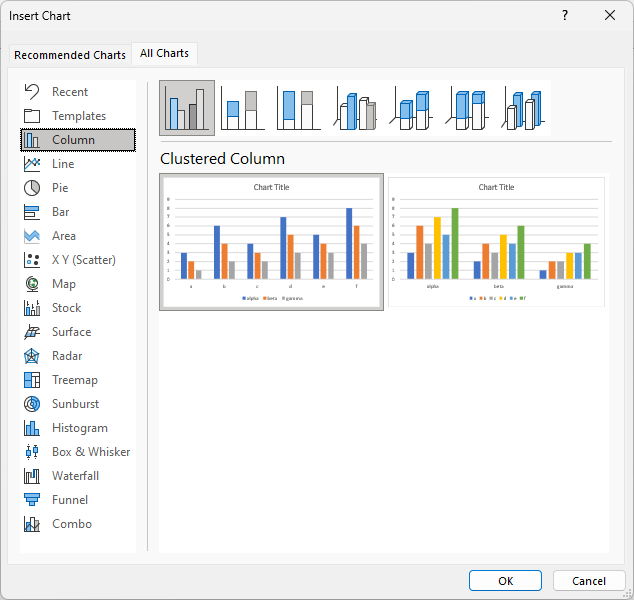
<p style="text-align: center;"><img class="aligncenter" alt="All Charts dialog new to Excel 2013" src="../../images/2013-02/2013AllCharts.png" width="660" height="511" /></p>
<p>The default as always is the clustered column chart. We have two choices, plot by rows and plot by columns.</p>
<p>Let&#8217;s look at the Line Charts options.</p>
<p style="text-align: center;"><img class="aligncenter" alt="Line Charts dialog new to Excel 2013" src="../../images/2013-02/2013LineCharts.png" width="664" height="513" /></p>
<p>Again, two choices: data in rows and data in columns.</p>
<p>When I saw this dialog for the first time, I happened to move my mouse over one of the thumbnails, and I got a larger preview. Nice touch.</p>
<p style="text-align: center;"><img class="aligncenter" alt="Line Charts dialog new to Excel 2013" src="../../images/2013-02/2013LineChartsMouseover.png" width="664" height="511" /></p>
<p>You can also get to the Line Charts dialog from the bottom of the line chart dropdown on the Insert tab of the ribbon.</p>
<p style="text-align: center;"><img class="aligncenter" alt="Line Charts dropdown on Insert tab" src="../../images/2013-02/2013InsertChartsLineDropdown.png" width="278" height="313" /></p>
<p>And here&#8217;s my first line chart. The defaults are pretty nice. The gridlines are lighter (they were black in all previous versions of Excel), and the other lines and text are slightly muted. The default colors have changed from Excel 2007 and 2010: they seem a bit richer. I want to look at this chart. The series lines aren&#8217;t as thick as Excel 2007 and 2010, so the chart looks less like your first grader drew it with crayons.</p>
<p>The worksheet ranges used in the chart are highlighted, as in previous versions of Excel. But in previous versions the highlights were thin borders around the ranges, and to tell you the truth, I&#8217;d been using Excel 97 for several months before I noticed the outlines and realized what they were for. Here the lines are a bit wider, and the ranges themselves are filled with a faint tint of the outline color. The category labels are purple and the values are blue, like in previous Excel versions, but the series names have changed from green to red (though 8% of Excel users may never notice this change).</p>
<p style="text-align: center;"><img class="aligncenter" alt="Line Charts dialog new to Excel 2013" src="../../images/2013-02/2013FirstLineChart.png" width="654" height="546" /></p>
<p>When the chart is selected, three icons appear to the right of the chart. These are new user interface elements that let you adding and removing chart elements (the plus sign), apply color schemes and gaudy visual effects (the paintbrush), and filter of the chart’s data on the fly (the funnel). The first icon is a nice addition, putting chart element controls right next to the chart instead hiding them on a ribbon tab that’s usually not even visible. The middle icon is an attractive nuisance, too tempting to people who like to sex up their charts. The third icon is way cool, because it lets you show and hide entire series, or data points for given categories, just by clicking on checkboxes.</p>
<p>I&#8217;ll tell you all about these icons in an upcoming post.
<p>Peltier Technical Services, Inc., Copyright © 2011.<br /> <br /><span style="font: 80% Verdana,Tahoma,Arial,sans-serif;">Licensed under a <a rel="license" href="http://creativecommons.org/licenses/by-nc-sa/3.0/">Creative Commons Attribution-Noncommercial-Share Alike 3.0 Unported License</a>.<br /> <br />
<a href="http://peltiertech.com/Utility/" title="PTS Chart Utilities: Waterfall, Cluster-Stack Column, Box and Whisker, Marimekko"><img src="http://peltiertech.com/Utility/pix/pts_banner_map.png" alt="PTS Chart Utilities: Waterfall, Box and Whisker, Cluster-Stack, Panel, Marimekko, Dot, Panel" border="0" /></a></p>
<div class="feedflare">
<a href="http://feeds.feedburner.com/~ff/peltiertech/EsrO?a=mT9PehKeG6w:4UKTA7deF6w:yIl2AUoC8zA"><img src="http://feeds.feedburner.com/~ff/peltiertech/EsrO?d=yIl2AUoC8zA" border="0"></img></a>
</div><img src="http://feeds.feedburner.com/~r/peltiertech/EsrO/~4/mT9PehKeG6w" height="1" width="1"/>]]></content:encoded>
			<wfw:commentRss>http://peltiertech.com/WordPress/my-first-excel-2013-chart/feed/</wfw:commentRss>
		<slash:comments>8</slash:comments>
		</item>
		<item>
		<title>Simple VBA Code to Manipulate the SERIES Formula and Add Names to Excel Chart Series</title>
		<link>http://peltiertech.com/WordPress/simple-vba-code-to-manipulate-series-formula-and-add-names-to-excel-chart-series/</link>
		<comments>http://peltiertech.com/WordPress/simple-vba-code-to-manipulate-series-formula-and-add-names-to-excel-chart-series/#comments</comments>
		<pubDate>Mon, 11 Feb 2013 08:00:43 +0000</pubDate>
		<dc:creator>Jon Peltier</dc:creator>
				<category><![CDATA[VBA]]></category>
		<category><![CDATA[Excel 2013]]></category>
		<category><![CDATA[series formula]]></category>

		<guid isPermaLink="false">http://peltiertech.com/WordPress/?p=3499</guid>
		<description>The Problem In a comment to another post, a reader asked about fixing the series names in his charts. Apparently he has been given dozens of charts, and all the series are named Series1, Series2, etc., the default names you see if names have not been defined. It turns out his series data is in [...]</description>
				<content:encoded><![CDATA[<h2>The Problem</h2>
<p>In a comment to another post, a reader asked about fixing the series names in his charts. Apparently he has been given dozens of charts, and all the series are named Series1, Series2, etc., the default names you see if names have not been defined. It turns out his series data is in rows, and the series names are in the cells just to the left of the data.</p>
<p>So the data looks something like this:</p>
<p style="text-align: center;"><img class="aligncenter" alt="&quot;Nice&quot; Chart Data" src="../../images/2013-02/NiceChartData.png" width="475" height="259" /></p>
<p>This is what I call &#8220;nice&#8221; chart data. It&#8217;s all in a single block, not bisected by blank rows or columns, with the series names and category labels in the first row and column, and with the top left cell blank. The top left blank cell helps Excel parse the data range into category labels, series names, and values.</p>
<p>If you select such a data range and insert your chart, Excel automatically figures out the series names and category labels. But someone may have selected the range without including the series names, or perhaps the series names weren&#8217;t there at first but were filled in after the chart was created.</p>
<p>So here is the situation:</p>
<p style="text-align: center;"><img class="aligncenter" alt="Chart with data plotted by row but with no series names" src="../../images/2013-02/ByRowNoNames.png" width="475" height="601" /></p>
<p>The category labels, highlighted in purple, are aligned in a row. The value data, highlighted in blue, are plotted in rows, parallel to the category labels. No cells are highlighted to indicate series names. The formula for the first series is shown below the chart. The reference for the series name should be between the open parenthesis and the first comma. Since it&#8217;s blank, Excel uses the boring Series1 nomenclature.</p>
<p>We&#8217;re going to use the series formula to figure out the series names. For this series, we can extract the arguments from the formula. To review, the arguments are: Series Names, Category Labels (or X Values), Y Values, and Plot Order. We will determine the range for the Y values, find the cell right before this range, and insert its reference into the series formula where we now have a blank.</p>
<h2>The VBA Code</h2>
<p>The code as scoped out above gets the cell to the left of a row of values, but note that I keep writing &#8220;the cell before the values&#8221;. We&#8217;ll make the code a little smarter than average: it will determine whether the data is in rows or columns, and if it&#8217;s in rows, take the cell to the left of this data, but if it&#8217;s in columns, take the cell above this data. Good thinking, eh? Burn me twice, shame on me.</p>
<p>Here is the procedure that does all the work. We pass in the series, and it fixes the series formula. The steps taken by the code are:</p>
<ul>
<li>get the series formula</li>
<li>extract the comma separated list of arguments from within the parentheses</li>
<li>split the CSV list of arguments into an array</li>
<li>find the range corresponding to the third argument</li>
<li>find the cell right before this range</li>
<li>insert the cell&#8217;s address into the array of arguments</li>
<li>reconstruct the formula</li>
<li>reapply the formula to the series.</li>
</ul>
<p>In other words:</p>
<pre><strong><code><span style="color: #0000ff;">Sub</span> AssignSeriesName(srs <span style="color: #0000ff;">As</span> Series)
<span style="color: #339966;">  ' assign series names to series in charts
  ' use cell above or to left of series values
  ' for series data by row or by column</span>

  <span style="color: #339966;">' parse series formula</span>
  <span style="color: #0000ff;">Dim</span> sFmla <span style="color: #0000ff;">As String</span>, sArguments <span style="color: #0000ff;">As String</span>, vArguments <span style="color: #0000ff;">As Variant</span>
  sFmla = srs.Formula
  sArguments = <span style="color: #0000ff;">Mid$</span>(Left$(sFmla, Len(sFmla) - 1), InStr(sFmla, "(") + 1)
  vArguments = Split(sArguments, ",")

  <span style="color: #339966;">' get ranges</span>
  <span style="color: #0000ff;">Dim</span> rYValues <span style="color: #0000ff;">As</span> Range
  <span style="color: #0000ff;">Dim</span> rName <span style="color: #0000ff;">As</span> Range

  <span style="color: #0000ff;">Set</span> rYValues = Range(vArguments(LBound(vArguments) + 2))
  <span style="color: #0000ff;">If</span> rYValues.Rows.Count = 1 <span style="color: #0000ff;">Then</span>
    <span style="color: #339966;">' by row: want cell to left</span>
    <span style="color: #0000ff;">Set</span> rName = rYValues.Resize(1, 1).Offset(0, -1)
  <span style="color: #0000ff;">ElseIf</span> rYValues.Columns.Count = 1 <span style="color: #0000ff;">Then</span>
    <span style="color: #339966;">' by column: want cell above</span>
    <span style="color: #0000ff;">Set</span> rName = rYValues.Resize(1, 1).Offset(-1, 0)
  <span style="color: #0000ff;">Else</span>
    <span style="color: #339966;">' dude</span>
  <span style="color: #0000ff;">End If</span>

  <span style="color: #339966;">' get address</span>
  <span style="color: #0000ff;">Dim</span> sNameAddress <span style="color: #0000ff;">As String</span>
  sNameAddress = rName.Address(<span style="color: #0000ff;">True</span>, <span style="color: #0000ff;">True</span>, , <span style="color: #0000ff;">True</span>)

  <span style="color: #339966;">' reconstruct &amp; apply series formula</span>
  vArguments(LBound(vArguments)) = sNameAddress
  sFmla = "=series(" &amp; Join(vArguments, ",") &amp; ")"
  srs.Formula = sFmla
<span style="color: #0000ff;">End Sub</span></code></strong></pre>
<p>Okay. We can use this in three ways.</p>
<p>1. To select a series and get the series name for just that series:</p>
<pre><strong><code><span style="color: #0000ff;">Sub</span> AssignNameToSelectedSeries()
  <span style="color: #0000ff;">Dim </span>srs <span style="color: #0000ff;">As</span> Series
  <span style="color: #0000ff;">If</span> LCase$(TypeName(Selection)) = "series" <span style="color: #0000ff;">Then</span>
    <span style="color: #0000ff;">Set</span> srs = Selection
    AssignSeriesName srs
  <span style="color: #0000ff;">End If</span>
<span style="color: #0000ff;">End Sub</span></code></strong></pre>
<p>For the next two cases, we&#8217;ll use this helper procedure, which accepts a chart, and fixes all the series in the chart:</p>
<pre><strong><code><span style="color: #0000ff;">Sub</span> AssignSeriesNamesToChart(cht <span style="color: #0000ff;">As</span> Chart)
  <span style="color: #0000ff;">Dim</span> srs <span style="color: #0000ff;">As</span> Series
  <span style="color: #0000ff;">For Each</span> srs <span style="color: #0000ff;">In</span> cht.SeriesCollection
    AssignSeriesName srs
  <span style="color: #0000ff;">Next</span>
<span style="color: #0000ff;">End Sub</span></code></strong></pre>
<p>2. To select a chart, and do each series in the chart:</p>
<pre><strong><code><span style="color: #0000ff;">Sub</span> AssignNamesToSeriesInActiveChart()
  <span style="color: #0000ff;">If Not</span> ActiveChart <span style="color: #0000ff;">Is Nothing Then</span>
    AssignSeriesNamesToChart ActiveChart
  <span style="color: #0000ff;">End If</span>
<span style="color: #0000ff;">End Sub</span></code></strong></pre>
<p>3. And finally, to loop through all of the series in all of the charts on the active workbook:</p>
<pre><strong><code><span style="color: #0000ff;">Sub</span> AssignNamesToSeriesInAllCharts()
  <span style="color: #0000ff;">Dim</span> chtob <span style="color: #0000ff;">As</span> ChartObject
  <span style="color: #0000ff;">For Each</span> chtob <span style="color: #0000ff;">In</span> ActiveSheet.ChartObjects
    AssignSeriesNamesToChart chtob.Chart
  <span style="color: #0000ff;">Next</span>
<span style="color: #0000ff;">End Sub</span></code></strong></pre>
<p>To run your code, select the series you want to name or the chart you want to name, or activate the sheet with the charts you want to name, press Alt+F8 to open the Macro dialog, select the appropriate macro, and click Run.</p>
<p style="text-align: center;"><img class="aligncenter" alt="Macro dialog" src="../../images/2013-02/MacroDialog.png" width="390" height="405" /></p>
<h2>The Results</h2>
<p>Here is our first chart above after running the code. The highlighted ranges include the green outlined range with series names, and the names are also shown in the legend. The series formula shown below the chart now has a reference to the cell with the series name.</p>
<p style="text-align: center;"><img class="aligncenter" alt="Chart with data plotted by row with series names" src="../../images/2013-02/ByRowWithNames.png" width="475" height="601" /></p>
<p>Let&#8217;s test the code with the following chart, with data plotted in columns and no series names. Before:</p>
<p style="text-align: center;"><img class="aligncenter" alt="Chart with data plotted by column but with no series names" src="../../images/2013-02/ByColumnNoNames.png" width="496" height="600" /></p>
<p>And after:</p>
<p style="text-align: center;"><img class="aligncenter" alt="Chart with data plotted by column with series names" src="../../images/2013-02/ByColumnWithNames.png" width="496" height="600" /></p>
<p>The series names are highlighted in the worksheet and appear in the legend, and the series formula has been updated with a reference to the cell with the label.</p>
<h2>First look at Excel 2013</h2>
<p>The last two screen shots look a bit different, don&#8217;t they? That&#8217;s because I did the second half of the experiment in Excel 2013. It looks a little lighter, because the row and column headings have no color and the chart outline isn&#8217;t so thick and gray when the chart is selected.</p>
<p>The highlighting of the ranges in the worksheet is more pronounced. The outline for the values are still blue, but the line is thicker, and the range is filled in with a light shade of blue. The outline for the category labels is still purple, but again, the line is thicker and the cells are lightly filled. The series name outline has switched from green to thicker red, and the cells are lightly shaded in 2013. I like this more obvious shading in 2013. Back in about Excel 97, I first noticed the outlining after I&#8217;d been using it for months. The thin outlines were not obvious enough until I already knew what I was looking for.</p>
<p>Also, when the chart is selected, three icons appear to the right of the chart. These are new user interface bits that handle adding and removing chart elements (the plus sign), applying color schemes and gaudy visual effects (the paintbrush), and on the fly filtering of the chart&#8217;s data (the funnel). The first of these icons is a nice addition, putting the chart elements right next to the chart instead of a mile away on a ribbon tab that&#8217;s usually not even visible. The middle icon will be too tempting to people who like flashy but nonsubstantive charts. The third icon is actually pretty cool, because you can show and hide whole series, or data points for given categories, just by checking and unchecking boxes in a dialog.</p>
<p>I&#8217;ll describe these new chart icons in an upcoming post. Stay tuned!
<p>Peltier Technical Services, Inc., Copyright © 2011.<br /> <br /><span style="font: 80% Verdana,Tahoma,Arial,sans-serif;">Licensed under a <a rel="license" href="http://creativecommons.org/licenses/by-nc-sa/3.0/">Creative Commons Attribution-Noncommercial-Share Alike 3.0 Unported License</a>.<br /> <br />
<A HREF="http://www.exceluser.com/cmd.asp?Clk=2474005"><IMG SRC="http://www.exceluser.com/images/info/pub/pnp468_01.jpg" ALT="Create Excel dashboards quickly with Plug-N-Play reports." WIDTH="468" HEIGHT="60" border=0></A><br />
<br /><img src="http://www.exceluser.com/cmd.asp?Imp=2474005" width="0" height="0" border="0"></p>
<div class="feedflare">
<a href="http://feeds.feedburner.com/~ff/peltiertech/EsrO?a=28JZhtUNqNo:4zI4IgV9MsU:yIl2AUoC8zA"><img src="http://feeds.feedburner.com/~ff/peltiertech/EsrO?d=yIl2AUoC8zA" border="0"></img></a>
</div><img src="http://feeds.feedburner.com/~r/peltiertech/EsrO/~4/28JZhtUNqNo" height="1" width="1"/>]]></content:encoded>
			<wfw:commentRss>http://peltiertech.com/WordPress/simple-vba-code-to-manipulate-series-formula-and-add-names-to-excel-chart-series/feed/</wfw:commentRss>
		<slash:comments>5</slash:comments>
		</item>
		<item>
		<title>Another Simple Baseline for Excel Column Chart</title>
		<link>http://peltiertech.com/WordPress/another-simple-baseline-for-excel-column-chart/</link>
		<comments>http://peltiertech.com/WordPress/another-simple-baseline-for-excel-column-chart/#comments</comments>
		<pubDate>Sat, 02 Feb 2013 15:53:46 +0000</pubDate>
		<dc:creator>Jon Peltier</dc:creator>
				<category><![CDATA[Combination Charts]]></category>
		<category><![CDATA[column charts]]></category>
		<category><![CDATA[reference lines]]></category>

		<guid isPermaLink="false">http://peltiertech.com/WordPress/?p=3493</guid>
		<description>A reader of this blog asked how to add a series to a 3D column chart, to show reference values. Excel doesn&amp;#8217;t allow combination charts if one of the chart types is 3D (fortunately!), so she added lines from the Insert Shapes group on the ribbon. Here is the result. As a quick response I [...]</description>
				<content:encoded><![CDATA[<p>A reader of this blog asked how to add a series to a 3D column chart, to show reference values. Excel doesn&#8217;t allow combination charts if one of the chart types is 3D (fortunately!), so she added lines from the Insert Shapes group on the ribbon. Here is the result.</p>
<p style="text-align: center;"><img class="aligncenter" alt="3D Column Chart with Reference Lines" src="../../images/2013-01/3DColumnLine.jpg" width="598" height="405" /></p>
<p>As a quick response I sent the following chart, which uses a hollow column on the secondary axis to indicate the baseline, and I wrote up the tutorial in <a title="Simple Baseline for Excel Column Chart" href="http://peltiertech.com/WordPress/simple-baseline-for-excel-column-chart/">Simple Baseline for Excel Column Chart</a>.</p>
<p style="text-align: center;"><img class="aligncenter" alt="Hollow Columns for Baseline" src="../../images/2013-01/HollowBox14.png" width="480" height="288" /></p>
<p>In a comment to that post, a reader suggested a horizontal line, rather than a whole box, as the baseline marker. The following protocol describes how to accomplish this</p>
<p>Here&#8217;s the data for these two examples.</p>
<p style="text-align: center;"><img class="aligncenter" alt="Data for this simple example" src="../../images/2013-01/HollowBoxData.png" width="541" height="101" /></p>
<p>The first step is to create a clustered column chart.</p>
<p style="text-align: center;"><img class="aligncenter" alt="Create a clustered column chart" src="../../images/2013-01/HollowBox01.png" width="481" height="289" /></p>
<p>The second step is to switch rows and columns in the source data orientation if necessary (it was).</p>
<p style="text-align: center;"><img class="aligncenter" alt="Switch rows and columns if necessary" src="../../images/2013-01/HollowBox02.png" width="481" height="289" /></p>
<p>Now we&#8217;ll clean up the chart a bit. Let&#8217;s remove the chart area border, remove the line for the vertical axis, use lighter gray lines for the gridlines and horizontal axis, and remove the tick marks from the horizontal axis.</p>
<p style="text-align: center;"><img class="aligncenter" alt="Clean up the formatting" src="../../images/2013-01/HollowBox03.png" width="480" height="288" /></p>
<p>Change the Baseline series to the XY (Scatter) type, which also moves it to the secondary axis.</p>
<p style="text-align: center;"><img class="aligncenter" alt="Change Baseline series to XY type" src="../../images/2013-01/HorizLine04.png" width="480" height="288" /></p>
<p>Reassign the Baseline XY series to the primary axis.</p>
<p style="text-align: center;"><img class="aligncenter" alt="Move Baseline XY series to primary axis" src="../../images/2013-01/HorizLine05.png" width="480" height="288" /></p>
<p>Apply a consistent set of colors to the Q1 through Q4 series.</p>
<p style="text-align: center;"><img class="aligncenter" alt="Apply 'nice' formatting to series Q1 through Q4" src="../../images/2013-01/HorizLine06.png" width="480" height="288" /></p>
<p>Add error bars to the Baseline series. The default is horizontal and vertical error bars of length 1 in the positive and negative directions.</p>
<p style="text-align: center;"><img class="aligncenter" alt="Add error bars to Baseline series" src="../../images/2013-01/HorizLine07.png" width="480" height="288" /></p>
<p><span style="color: #000000;" data-mce-mark="1">Select and delete the vertical error bars.</span></p>
<p style="text-align: center;"><img class="aligncenter" alt="Delete Baseline series vertical error bars" src="../../images/2013-01/HorizLine08.png" width="480" height="288" /></p>
<p>Resize the horizontal error bars. Use trial and error, or if you&#8217;re good at math:</p>
<pre style="padding-left: 30px;"><code>Error bar total width (2 error bars) = 4 column widths
Total category width = 4 column widths + gap width
Gap width = 150, which means 1.5 column widths
Single error bar width = 4/5.5/2 = 0.364</code></pre>
<p style="text-align: center;"><img class="aligncenter" alt="Correctly size Baseline series horizontal error bars" src="../../images/2013-01/HorizLine09.png" width="480" height="288" /></p>
<p>Format the error bars as desired.</p>
<p style="text-align: center;"><img class="aligncenter" alt="Format horizontal error bars" src="../../images/2013-01/HorizLine10.png" width="480" height="288" /></p>
<p>Add data labels. If you select the whole chart and then use the Data Labels command on the ribbon, all series will be labeled in one step. This saves a lot of time over labeling one series at a time.</p>
<p style="text-align: center;"><img class="aligncenter" alt="Add data labels to all series in chart" src="../../images/2013-01/HorizLine11.png" width="480" height="288" /></p>
<p>Change each set of labels from Value to Series Name, and change the Baseline label position to Below.</p>
<p style="text-align: center;"><img class="aligncenter" alt="Change all labels from Value to Series Name, move Baseline labels to Below position" src="../../images/2013-01/HorizLine12.png" width="480" height="288" /></p>
<p>Finally, if desired, use a darker shade of the series colors for the labels. Change the Baseline marker style to none, and delete the legend</p>
<p style="text-align: center;"><img class="aligncenter" alt="Color label font to match series, change Baseline to no marker, delete legend" src="../../images/2013-01/HorizLine13.png" width="480" height="288" /></p>
<p>It&#8217;s a lot of steps, slightly more involved than the <a title="Simple Baseline for Excel Column Chart" href="http://peltiertech.com/WordPress/simple-baseline-for-excel-column-chart/">&#8220;hollow box&#8221; technique of the previous post</a>, but it&#8217;s still quick and easy.
<p>Peltier Technical Services, Inc., Copyright © 2011.<br /> <br /><span style="font: 80% Verdana,Tahoma,Arial,sans-serif;">Licensed under a <a rel="license" href="http://creativecommons.org/licenses/by-nc-sa/3.0/">Creative Commons Attribution-Noncommercial-Share Alike 3.0 Unported License</a>.<br /> <br />
<A HREF="http://www.exceluser.com/cmd.asp?Clk=1374689"><IMG SRC="http://www.exceluser.com/images/info/pub/info_dash_c02.gif" ALT="Learn how to create Excel dashboards." WIDTH="468" HEIGHT="60" border=0></A><br />
<br /><img src="http://www.exceluser.com/cmd.asp?Imp=1374689" width="0" height="0" border="0"></p>
<div class="feedflare">
<a href="http://feeds.feedburner.com/~ff/peltiertech/EsrO?a=RDg2bJBwSOc:i6GSIIkAhW0:yIl2AUoC8zA"><img src="http://feeds.feedburner.com/~ff/peltiertech/EsrO?d=yIl2AUoC8zA" border="0"></img></a>
</div><img src="http://feeds.feedburner.com/~r/peltiertech/EsrO/~4/RDg2bJBwSOc" height="1" width="1"/>]]></content:encoded>
			<wfw:commentRss>http://peltiertech.com/WordPress/another-simple-baseline-for-excel-column-chart/feed/</wfw:commentRss>
		<slash:comments>10</slash:comments>
		</item>
	</channel>
</rss>