<!DOCTYPE html>
<html lang="en-US" class="no-js">
<head>
	<meta charset="UTF-8">
	<meta name="viewport" content="width=device-width, initial-scale=1">
	<link rel="profile" href="http://gmpg.org/xfn/11">
	<link rel="pingback" href="http://pattersonc.com/xmlrpc.php">

	<title>Christopher Patterson &#8211; &quot;Writing the legacy code of tomorrow, today.&quot;</title>
<meta name='robots' content='noindex, nofollow' />
<script>document.documentElement.className = document.documentElement.className.replace("no-js","js");</script>
<link rel="alternate" type="application/rss+xml" title="Christopher Patterson &raquo; Feed" href="https://pattersonc.com/?feed=rss2" />
<link rel="alternate" type="application/rss+xml" title="Christopher Patterson &raquo; Comments Feed" href="https://pattersonc.com/?feed=comments-rss2" />
<style id='wp-img-auto-sizes-contain-inline-css'>
img:is([sizes=auto i],[sizes^="auto," i]){contain-intrinsic-size:3000px 1500px}
/*# sourceURL=wp-img-auto-sizes-contain-inline-css */
</style>
<link rel='stylesheet' id='genesis-blocks-style-css-css' href='http://pattersonc.com/wp-content/plugins/genesis-blocks/dist/style-blocks.build.css?ver=1730123456' media='all' />
<style id='wp-emoji-styles-inline-css'>

	img.wp-smiley, img.emoji {
		display: inline !important;
		border: none !important;
		box-shadow: none !important;
		height: 1em !important;
		width: 1em !important;
		margin: 0 0.07em !important;
		vertical-align: -0.1em !important;
		background: none !important;
		padding: 0 !important;
	}
/*# sourceURL=wp-emoji-styles-inline-css */
</style>
<style id='wp-block-library-inline-css'>
:root{--wp-block-synced-color:#7a00df;--wp-block-synced-color--rgb:122,0,223;--wp-bound-block-color:var(--wp-block-synced-color);--wp-editor-canvas-background:#ddd;--wp-admin-theme-color:#007cba;--wp-admin-theme-color--rgb:0,124,186;--wp-admin-theme-color-darker-10:#006ba1;--wp-admin-theme-color-darker-10--rgb:0,107,160.5;--wp-admin-theme-color-darker-20:#005a87;--wp-admin-theme-color-darker-20--rgb:0,90,135;--wp-admin-border-width-focus:2px}@media (min-resolution:192dpi){:root{--wp-admin-border-width-focus:1.5px}}.wp-element-button{cursor:pointer}:root .has-very-light-gray-background-color{background-color:#eee}:root .has-very-dark-gray-background-color{background-color:#313131}:root .has-very-light-gray-color{color:#eee}:root .has-very-dark-gray-color{color:#313131}:root .has-vivid-green-cyan-to-vivid-cyan-blue-gradient-background{background:linear-gradient(135deg,#00d084,#0693e3)}:root .has-purple-crush-gradient-background{background:linear-gradient(135deg,#34e2e4,#4721fb 50%,#ab1dfe)}:root .has-hazy-dawn-gradient-background{background:linear-gradient(135deg,#faaca8,#dad0ec)}:root .has-subdued-olive-gradient-background{background:linear-gradient(135deg,#fafae1,#67a671)}:root .has-atomic-cream-gradient-background{background:linear-gradient(135deg,#fdd79a,#004a59)}:root .has-nightshade-gradient-background{background:linear-gradient(135deg,#330968,#31cdcf)}:root .has-midnight-gradient-background{background:linear-gradient(135deg,#020381,#2874fc)}:root{--wp--preset--font-size--normal:16px;--wp--preset--font-size--huge:42px}.has-regular-font-size{font-size:1em}.has-larger-font-size{font-size:2.625em}.has-normal-font-size{font-size:var(--wp--preset--font-size--normal)}.has-huge-font-size{font-size:var(--wp--preset--font-size--huge)}.has-text-align-center{text-align:center}.has-text-align-left{text-align:left}.has-text-align-right{text-align:right}.has-fit-text{white-space:nowrap!important}#end-resizable-editor-section{display:none}.aligncenter{clear:both}.items-justified-left{justify-content:flex-start}.items-justified-center{justify-content:center}.items-justified-right{justify-content:flex-end}.items-justified-space-between{justify-content:space-between}.screen-reader-text{border:0;clip-path:inset(50%);height:1px;margin:-1px;overflow:hidden;padding:0;position:absolute;width:1px;word-wrap:normal!important}.screen-reader-text:focus{background-color:#ddd;clip-path:none;color:#444;display:block;font-size:1em;height:auto;left:5px;line-height:normal;padding:15px 23px 14px;text-decoration:none;top:5px;width:auto;z-index:100000}html :where(.has-border-color){border-style:solid}html :where([style*=border-top-color]){border-top-style:solid}html :where([style*=border-right-color]){border-right-style:solid}html :where([style*=border-bottom-color]){border-bottom-style:solid}html :where([style*=border-left-color]){border-left-style:solid}html :where([style*=border-width]){border-style:solid}html :where([style*=border-top-width]){border-top-style:solid}html :where([style*=border-right-width]){border-right-style:solid}html :where([style*=border-bottom-width]){border-bottom-style:solid}html :where([style*=border-left-width]){border-left-style:solid}html :where(img[class*=wp-image-]){height:auto;max-width:100%}:where(figure){margin:0 0 1em}html :where(.is-position-sticky){--wp-admin--admin-bar--position-offset:var(--wp-admin--admin-bar--height,0px)}@media screen and (max-width:600px){html :where(.is-position-sticky){--wp-admin--admin-bar--position-offset:0px}}

/*# sourceURL=wp-block-library-inline-css */
</style>
<style id='classic-theme-styles-inline-css'>
/*! This file is auto-generated */
.wp-block-button__link{color:#fff;background-color:#32373c;border-radius:9999px;box-shadow:none;text-decoration:none;padding:calc(.667em + 2px) calc(1.333em + 2px);font-size:1.125em}.wp-block-file__button{background:#32373c;color:#fff;text-decoration:none}
/*# sourceURL=/wp-includes/css/classic-themes.min.css */
</style>
<style id='global-styles-inline-css'>
:root{--wp--preset--aspect-ratio--square: 1;--wp--preset--aspect-ratio--4-3: 4/3;--wp--preset--aspect-ratio--3-4: 3/4;--wp--preset--aspect-ratio--3-2: 3/2;--wp--preset--aspect-ratio--2-3: 2/3;--wp--preset--aspect-ratio--16-9: 16/9;--wp--preset--aspect-ratio--9-16: 9/16;--wp--preset--color--black: #000000;--wp--preset--color--cyan-bluish-gray: #abb8c3;--wp--preset--color--white: #ffffff;--wp--preset--color--pale-pink: #f78da7;--wp--preset--color--vivid-red: #cf2e2e;--wp--preset--color--luminous-vivid-orange: #ff6900;--wp--preset--color--luminous-vivid-amber: #fcb900;--wp--preset--color--light-green-cyan: #7bdcb5;--wp--preset--color--vivid-green-cyan: #00d084;--wp--preset--color--pale-cyan-blue: #8ed1fc;--wp--preset--color--vivid-cyan-blue: #0693e3;--wp--preset--color--vivid-purple: #9b51e0;--wp--preset--gradient--vivid-cyan-blue-to-vivid-purple: linear-gradient(135deg,rgb(6,147,227) 0%,rgb(155,81,224) 100%);--wp--preset--gradient--light-green-cyan-to-vivid-green-cyan: linear-gradient(135deg,rgb(122,220,180) 0%,rgb(0,208,130) 100%);--wp--preset--gradient--luminous-vivid-amber-to-luminous-vivid-orange: linear-gradient(135deg,rgb(252,185,0) 0%,rgb(255,105,0) 100%);--wp--preset--gradient--luminous-vivid-orange-to-vivid-red: linear-gradient(135deg,rgb(255,105,0) 0%,rgb(207,46,46) 100%);--wp--preset--gradient--very-light-gray-to-cyan-bluish-gray: linear-gradient(135deg,rgb(238,238,238) 0%,rgb(169,184,195) 100%);--wp--preset--gradient--cool-to-warm-spectrum: linear-gradient(135deg,rgb(74,234,220) 0%,rgb(151,120,209) 20%,rgb(207,42,186) 40%,rgb(238,44,130) 60%,rgb(251,105,98) 80%,rgb(254,248,76) 100%);--wp--preset--gradient--blush-light-purple: linear-gradient(135deg,rgb(255,206,236) 0%,rgb(152,150,240) 100%);--wp--preset--gradient--blush-bordeaux: linear-gradient(135deg,rgb(254,205,165) 0%,rgb(254,45,45) 50%,rgb(107,0,62) 100%);--wp--preset--gradient--luminous-dusk: linear-gradient(135deg,rgb(255,203,112) 0%,rgb(199,81,192) 50%,rgb(65,88,208) 100%);--wp--preset--gradient--pale-ocean: linear-gradient(135deg,rgb(255,245,203) 0%,rgb(182,227,212) 50%,rgb(51,167,181) 100%);--wp--preset--gradient--electric-grass: linear-gradient(135deg,rgb(202,248,128) 0%,rgb(113,206,126) 100%);--wp--preset--gradient--midnight: linear-gradient(135deg,rgb(2,3,129) 0%,rgb(40,116,252) 100%);--wp--preset--font-size--small: 13px;--wp--preset--font-size--medium: 20px;--wp--preset--font-size--large: 36px;--wp--preset--font-size--x-large: 42px;--wp--preset--spacing--20: 0.44rem;--wp--preset--spacing--30: 0.67rem;--wp--preset--spacing--40: 1rem;--wp--preset--spacing--50: 1.5rem;--wp--preset--spacing--60: 2.25rem;--wp--preset--spacing--70: 3.38rem;--wp--preset--spacing--80: 5.06rem;--wp--preset--shadow--natural: 6px 6px 9px rgba(0, 0, 0, 0.2);--wp--preset--shadow--deep: 12px 12px 50px rgba(0, 0, 0, 0.4);--wp--preset--shadow--sharp: 6px 6px 0px rgba(0, 0, 0, 0.2);--wp--preset--shadow--outlined: 6px 6px 0px -3px rgb(255, 255, 255), 6px 6px rgb(0, 0, 0);--wp--preset--shadow--crisp: 6px 6px 0px rgb(0, 0, 0);}:where(.is-layout-flex){gap: 0.5em;}:where(.is-layout-grid){gap: 0.5em;}body .is-layout-flex{display: flex;}.is-layout-flex{flex-wrap: wrap;align-items: center;}.is-layout-flex > :is(*, div){margin: 0;}body .is-layout-grid{display: grid;}.is-layout-grid > :is(*, div){margin: 0;}:where(.wp-block-columns.is-layout-flex){gap: 2em;}:where(.wp-block-columns.is-layout-grid){gap: 2em;}:where(.wp-block-post-template.is-layout-flex){gap: 1.25em;}:where(.wp-block-post-template.is-layout-grid){gap: 1.25em;}.has-black-color{color: var(--wp--preset--color--black) !important;}.has-cyan-bluish-gray-color{color: var(--wp--preset--color--cyan-bluish-gray) !important;}.has-white-color{color: var(--wp--preset--color--white) !important;}.has-pale-pink-color{color: var(--wp--preset--color--pale-pink) !important;}.has-vivid-red-color{color: var(--wp--preset--color--vivid-red) !important;}.has-luminous-vivid-orange-color{color: var(--wp--preset--color--luminous-vivid-orange) !important;}.has-luminous-vivid-amber-color{color: var(--wp--preset--color--luminous-vivid-amber) !important;}.has-light-green-cyan-color{color: var(--wp--preset--color--light-green-cyan) !important;}.has-vivid-green-cyan-color{color: var(--wp--preset--color--vivid-green-cyan) !important;}.has-pale-cyan-blue-color{color: var(--wp--preset--color--pale-cyan-blue) !important;}.has-vivid-cyan-blue-color{color: var(--wp--preset--color--vivid-cyan-blue) !important;}.has-vivid-purple-color{color: var(--wp--preset--color--vivid-purple) !important;}.has-black-background-color{background-color: var(--wp--preset--color--black) !important;}.has-cyan-bluish-gray-background-color{background-color: var(--wp--preset--color--cyan-bluish-gray) !important;}.has-white-background-color{background-color: var(--wp--preset--color--white) !important;}.has-pale-pink-background-color{background-color: var(--wp--preset--color--pale-pink) !important;}.has-vivid-red-background-color{background-color: var(--wp--preset--color--vivid-red) !important;}.has-luminous-vivid-orange-background-color{background-color: var(--wp--preset--color--luminous-vivid-orange) !important;}.has-luminous-vivid-amber-background-color{background-color: var(--wp--preset--color--luminous-vivid-amber) !important;}.has-light-green-cyan-background-color{background-color: var(--wp--preset--color--light-green-cyan) !important;}.has-vivid-green-cyan-background-color{background-color: var(--wp--preset--color--vivid-green-cyan) !important;}.has-pale-cyan-blue-background-color{background-color: var(--wp--preset--color--pale-cyan-blue) !important;}.has-vivid-cyan-blue-background-color{background-color: var(--wp--preset--color--vivid-cyan-blue) !important;}.has-vivid-purple-background-color{background-color: var(--wp--preset--color--vivid-purple) !important;}.has-black-border-color{border-color: var(--wp--preset--color--black) !important;}.has-cyan-bluish-gray-border-color{border-color: var(--wp--preset--color--cyan-bluish-gray) !important;}.has-white-border-color{border-color: var(--wp--preset--color--white) !important;}.has-pale-pink-border-color{border-color: var(--wp--preset--color--pale-pink) !important;}.has-vivid-red-border-color{border-color: var(--wp--preset--color--vivid-red) !important;}.has-luminous-vivid-orange-border-color{border-color: var(--wp--preset--color--luminous-vivid-orange) !important;}.has-luminous-vivid-amber-border-color{border-color: var(--wp--preset--color--luminous-vivid-amber) !important;}.has-light-green-cyan-border-color{border-color: var(--wp--preset--color--light-green-cyan) !important;}.has-vivid-green-cyan-border-color{border-color: var(--wp--preset--color--vivid-green-cyan) !important;}.has-pale-cyan-blue-border-color{border-color: var(--wp--preset--color--pale-cyan-blue) !important;}.has-vivid-cyan-blue-border-color{border-color: var(--wp--preset--color--vivid-cyan-blue) !important;}.has-vivid-purple-border-color{border-color: var(--wp--preset--color--vivid-purple) !important;}.has-vivid-cyan-blue-to-vivid-purple-gradient-background{background: var(--wp--preset--gradient--vivid-cyan-blue-to-vivid-purple) !important;}.has-light-green-cyan-to-vivid-green-cyan-gradient-background{background: var(--wp--preset--gradient--light-green-cyan-to-vivid-green-cyan) !important;}.has-luminous-vivid-amber-to-luminous-vivid-orange-gradient-background{background: var(--wp--preset--gradient--luminous-vivid-amber-to-luminous-vivid-orange) !important;}.has-luminous-vivid-orange-to-vivid-red-gradient-background{background: var(--wp--preset--gradient--luminous-vivid-orange-to-vivid-red) !important;}.has-very-light-gray-to-cyan-bluish-gray-gradient-background{background: var(--wp--preset--gradient--very-light-gray-to-cyan-bluish-gray) !important;}.has-cool-to-warm-spectrum-gradient-background{background: var(--wp--preset--gradient--cool-to-warm-spectrum) !important;}.has-blush-light-purple-gradient-background{background: var(--wp--preset--gradient--blush-light-purple) !important;}.has-blush-bordeaux-gradient-background{background: var(--wp--preset--gradient--blush-bordeaux) !important;}.has-luminous-dusk-gradient-background{background: var(--wp--preset--gradient--luminous-dusk) !important;}.has-pale-ocean-gradient-background{background: var(--wp--preset--gradient--pale-ocean) !important;}.has-electric-grass-gradient-background{background: var(--wp--preset--gradient--electric-grass) !important;}.has-midnight-gradient-background{background: var(--wp--preset--gradient--midnight) !important;}.has-small-font-size{font-size: var(--wp--preset--font-size--small) !important;}.has-medium-font-size{font-size: var(--wp--preset--font-size--medium) !important;}.has-large-font-size{font-size: var(--wp--preset--font-size--large) !important;}.has-x-large-font-size{font-size: var(--wp--preset--font-size--x-large) !important;}
/*# sourceURL=global-styles-inline-css */
</style>

<link rel='stylesheet' id='genesis-block-theme-style-css' href='http://pattersonc.com/wp-content/themes/genesis-block-theme/style.css?ver=1.0.0' media='all' />
<style id='genesis-block-theme-style-inline-css'>


	button,
	input[type='button'],
	input[type='submit'],
	.button,
	.page-numbers.current,
	.page-numbers:hover,
	#page #infinite-handle button,
	#page #infinite-handle button:hover,
	.comment-navigation a,
	.su-button,
	.mobile-navigation,
	.toggle-active,
	.main-navigation .menu-cta a:hover {
	      background-color: #0072e5;
	}

	.entry-content p a,
	.entry-content p a:hover,
	.header-text a,
	.header-text a:hover,
	.entry-content .meta-list a,
	.post-navigation a:hover .post-title,
	.entry-header .entry-title a:hover,
	#page .more-link:hover,
	.site-footer a,
	.main-navigation a:hover,
	.main-navigation ul li.current-menu-item a,
	.main-navigation ul li.current-page-item a {
		color: #0072e5;
	}

	.entry-content p a,
	.header-text a {
		box-shadow: inset 0 -1px 0 #0072e5;
	}

	.entry-content p a:hover,
	.header-text a:hover {
		box-shadow: inset 0 -2px 0 #0072e5;
	}

	
/*# sourceURL=genesis-block-theme-style-inline-css */
</style>
<link rel='stylesheet' id='genesis-block-theme-fonts-css' href='http://pattersonc.com/wp-content/themes/genesis-block-theme/inc/fonts/css/font-style.css' media='all' />
<link rel='stylesheet' id='gb-icons-css' href='http://pattersonc.com/wp-content/themes/genesis-block-theme/inc/icons/css/icon-style.css?ver=1.0.0' media='screen' />
<script src="http://pattersonc.com/wp-includes/js/jquery/jquery.min.js?ver=3.7.1" id="jquery-core-js"></script>
<script src="http://pattersonc.com/wp-includes/js/jquery/jquery-migrate.min.js?ver=3.4.1" id="jquery-migrate-js"></script>
<link rel="https://api.w.org/" href="https://pattersonc.com/index.php?rest_route=/" /><link rel="EditURI" type="application/rsd+xml" title="RSD" href="https://pattersonc.com/xmlrpc.php?rsd" />
</head>

<body class="home blog wp-embed-responsive wp-theme-genesis-block-theme featured-image-wide">

<header id="masthead" class="site-header">
	<div class="top-navigation">
		<!-- Mobile menu -->
		
<div class="mobile-navigation">
	<button class="menu-toggle button-toggle">
		<span>
			<i class="gbi gbicon-bars"></i>
			Menu		</span>
		<span>
			<i class="gbi gbicon-times"></i>
			Close		</span>
	</button><!-- .overlay-toggle -->
</div>

<div class="drawer-wrap">
	<div class="drawer drawer-menu-explore">
		<nav id="drawer-navigation" class="drawer-navigation">
			<div class="menu"><ul>
<li class="page_item page-item-2"><a href="https://pattersonc.com/?page_id=2">Sample Page</a></li>
</ul></div>
		</nav><!-- #site-navigation -->
	</div><!-- .drawer -->
</div>

		<div class="container">
			<div class="site-identity clear">
				<!-- Site title and logo -->
					<div class="site-title-wrap" itemscope itemtype="http://schema.org/Organization">
		<!-- Use the Site Logo feature, if supported -->
			
		<div class="titles-wrap 
		has-description		">
							<h1 class="site-title"><a href="https://pattersonc.com/" rel="home">Christopher Patterson</a></h1>
			
							<p class="site-description">&quot;Writing the legacy code of tomorrow, today.&quot;</p>
					</div>
	</div><!-- .site-title-wrap -->
		
				<div class="top-navigation-right">
					<!-- Main navigation -->
					<nav id="site-navigation" class="main-navigation" aria-label="Main">
											</nav><!-- .main-navigation -->
				</div><!-- .top-navigation-right -->
			</div><!-- .site-identity-->
		</div><!-- .container -->
	</div><!-- .top-navigation -->

	<!-- Get the archive page titles -->
	</header><!-- .site-header -->

<div id="page" class="hfeed site container">
	<div id="content" class="site-content">

	<div id="primary" class="content-area">
		<main id="main" class="site-main">
			<div id="post-wrap">
				
<article id="post-156" class="post-156 post type-post status-publish format-standard hentry category-uncategorized tag-msbuild without-featured-image" aria-label="Visual Studio 2010 Publish Command from msbuild Command line">
	<div class="post-content">
		<header class="entry-header">
							<h2 class="entry-title">
					<a href="https://pattersonc.com/?p=156" rel="bookmark">Visual Studio 2010 Publish Command from msbuild Command line</a>
				</h2>
			
						<p class="entry-byline">
		<!-- Create an avatar link -->
		<a href="https://pattersonc.com/?author=1" title="Posts by Christopher Patterson">
			<img alt='' src='https://secure.gravatar.com/avatar/015695cda2665751a24ac8c507309eed49adcc9b554af02c2ab58a63999d24da?s=44&#038;d=mm&#038;r=g' srcset='https://secure.gravatar.com/avatar/015695cda2665751a24ac8c507309eed49adcc9b554af02c2ab58a63999d24da?s=88&#038;d=mm&#038;r=g 2x' class='avatar avatar-44 photo' height='44' width='44' decoding='async'/>		</a>

		<!-- Create an author post link -->
		<a class="entry-byline-author" href="https://pattersonc.com/?author=1">
			Christopher Patterson		</a>
		<span class="entry-byline-on">on</span>
		<span class="entry-byline-date">July 15, 2010</span>
	</p>
				</header>
		
		<div class="entry-content">

			<p>Seems like there a bunch of confusion about how to produce the &#8220;Publish&#8221; behavior provided by Visual Studio 2010 from msbuild 4 command line. The question I keep seeing over and over again is: How do I publsih the output of a web application with web.config tranformations included. This should get the job done:</p>
<pre class="brush: csharp;">msbuild solution.sln <br/>/p:Configuration=Release;DeployOnBuild=true;<br/>DeployTarget=Package;_PackageTempDir=..\publish</pre>
		</div><!-- .entry-content -->
	</div><!-- .post-content-->

</article><!-- #post-## -->

<article id="post-148" class="post-148 post type-post status-publish format-standard hentry category-code tag-aspnet-mvc tag-github tag-ruby-on-rails without-featured-image" aria-label="ASP.NET MVC and Ruby on Rails Open Source Examples">
	<div class="post-content">
		<header class="entry-header">
							<h2 class="entry-title">
					<a href="https://pattersonc.com/?p=148" rel="bookmark">ASP.NET MVC and Ruby on Rails Open Source Examples</a>
				</h2>
			
						<p class="entry-byline">
		<!-- Create an avatar link -->
		<a href="https://pattersonc.com/?author=1" title="Posts by Christopher Patterson">
			<img alt='' src='https://secure.gravatar.com/avatar/015695cda2665751a24ac8c507309eed49adcc9b554af02c2ab58a63999d24da?s=44&#038;d=mm&#038;r=g' srcset='https://secure.gravatar.com/avatar/015695cda2665751a24ac8c507309eed49adcc9b554af02c2ab58a63999d24da?s=88&#038;d=mm&#038;r=g 2x' class='avatar avatar-44 photo' height='44' width='44' decoding='async'/>		</a>

		<!-- Create an author post link -->
		<a class="entry-byline-author" href="https://pattersonc.com/?author=1">
			Christopher Patterson		</a>
		<span class="entry-byline-on">on</span>
		<span class="entry-byline-date">January 20, 2010</span>
	</p>
				</header>
		
		<div class="entry-content">

			<p>Recently, I started hosting some “play” projects on <a href="http://github.com/pattersonc" target="_blank" rel="noopener">GitHub</a>. I have not had much time to write anything up on the details of these projects but I figured I would share the code anyway. First, the <a href="http://github.com/pattersonc/MyPhotos" target="_blank" rel="noopener">MyPhotos</a> example is a jumping off point for a personal photo catalog. Second, the <a href="http://github.com/pattersonc/ShowOff">ShowOff</a> project is a real world example of building a portfolio or gallery using ASP.NET MVC. Finally, <a href="http://johnvpetersen.com/" target="_blank" rel="noopener">John V. Peterson</a> was kind enough to share his <a href="http://github.com/pattersonc/Nerd-Dinner-on-Rails" target="_blank" rel="noopener">Nerd Dinner on Rails</a> project. This is a port of the popular ASP.NET MVC real world example Nerd Dinner project. </p>
<p><a href="http://pattersoncprod.wpengine.com/wp-content/uploads/2010/01/tmpA6FB.png"><img fetchpriority="high" decoding="async" style="border-right-width: 0px; display: inline; border-top-width: 0px; border-bottom-width: 0px; border-left-width: 0px" title="tmpA6FB" border="0" alt="tmpA6FB" src="http://pattersoncprod.wpengine.com/wp-content/uploads/2010/01/tmpA6FB_thumb.png" width="381" height="532" /></a></p>
<p>You can find the git repositories for these projects via my account on <a href="http://github.com/pattersonc" target="_blank" rel="noopener">GitHub</a>. </p>
<p>I am hoping to walk through these projects in future posts. I have some down time due to a recent surgery. Depending on how I feel day to day, I will be working on these upcoming posts to pass the time.</p>
		</div><!-- .entry-content -->
	</div><!-- .post-content-->

</article><!-- #post-## -->

<article id="post-134" class="post-134 post type-post status-publish format-standard hentry category-code tag-aspnet-mvc without-featured-image" aria-label="ASP.NET MVC Helper &ndash; Dynamic Forms based on Model">
	<div class="post-content">
		<header class="entry-header">
							<h2 class="entry-title">
					<a href="https://pattersonc.com/?p=134" rel="bookmark">ASP.NET MVC Helper &ndash; Dynamic Forms based on Model</a>
				</h2>
			
						<p class="entry-byline">
		<!-- Create an avatar link -->
		<a href="https://pattersonc.com/?author=1" title="Posts by Christopher Patterson">
			<img alt='' src='https://secure.gravatar.com/avatar/015695cda2665751a24ac8c507309eed49adcc9b554af02c2ab58a63999d24da?s=44&#038;d=mm&#038;r=g' srcset='https://secure.gravatar.com/avatar/015695cda2665751a24ac8c507309eed49adcc9b554af02c2ab58a63999d24da?s=88&#038;d=mm&#038;r=g 2x' class='avatar avatar-44 photo' height='44' width='44' loading='lazy' decoding='async'/>		</a>

		<!-- Create an author post link -->
		<a class="entry-byline-author" href="https://pattersonc.com/?author=1">
			Christopher Patterson		</a>
		<span class="entry-byline-on">on</span>
		<span class="entry-byline-date">September 28, 2009</span>
	</p>
				</header>
		
		<div class="entry-content">

			<p>Recently, I was working with a fairly complex data model that required a simple input form. Being the lazy programmer I am, I did not feel like crunching out the HTML required to generate this form by hand. So instead, I wrote an HTML helper class to generate the form for me.</p>
<p><strong>Model</strong></p>
<p>Here is the data model we are going to be working with in this example.</p>
<pre class="brush: csharp;">public class Person
{
    public string Name { get; set; }
    public int Age { get; set; }
    public Address Address{ get; set; }
    public Gender Gender { get; set; }
}

public class Address
{
    public string Address1 { get; set; }
    public string Address2 { get; set; }
    public string City { get; set; }
    public string State { get; set; }
}

public enum Gender
{
    Male,
    Female
}</pre>
<p><strong></strong></p>
<p><strong>Goal</strong></p>
<p>The goal here is to have a View that needs only call this helper to generate the textboxes and dropdown lists used for entering data. This way we avoid manually typing all of those angle brackets. So our View will look something like…</p>
<p>&#160;</p>
<pre class="brush: xml;">&lt;h2&gt;Dynamic Form&lt;/h2&gt;

&lt;%= Html.ValidationSummary(&quot;Create was unsuccessful. Please correct the errors and try again.&quot;) %&gt;

&lt;% using (Html.BeginForm()) {%&gt;

&lt;%= Html.DynamicInputs(Model, &quot;Enter Person Information&quot;, string.Empty) %&gt;

&lt;p&gt;
    &lt;input type=&quot;submit&quot; value=&quot;Submit&quot; /&gt;
&lt;/p&gt;

&lt;% } %&gt;</pre>
<p>&#160;<strong></strong></p>
<p><strong>Dynamic Input Helper</strong></p>
<p>The DynamicInputHelper will enumerate the data model properties and output forms elements responsible for receiving input from the user based on the data type. This is pretty simple.</p>
<p>&#160;</p>
<pre class="brush: csharp;">public static class DynamicFormHelper
{
    public static string DynamicInputs&lt;T&gt;(this HtmlHelper helper, T obj, string heading, string prefix)
        where T : class
    {

        // Contruct id for model binding
        if (!string.IsNullOrEmpty(prefix))
            prefix += &quot;.&quot;;

        // Make sure we have an instance of the obj
        if (obj == null)
            obj = (T)Activator.CreateInstance(typeof(T));

        var type = obj.GetType();

        var sb = new StringBuilder().Append(&quot;&lt;fieldset&gt;&quot;);

        sb.AppendFormat(&quot;&lt;legend&gt;{0}&lt;/legend&gt;&quot;, heading);

        foreach (var propertyInfo in type.GetProperties())
        {
            if ((propertyInfo.PropertyType.IsValueType &amp;&amp; !propertyInfo.PropertyType.IsEnum) || propertyInfo.PropertyType.FullName == typeof(string).FullName)
            {
                sb.AppendFormat(
                    &quot;&lt;p&gt;&lt;label for=\&quot;{0}\&quot;&gt;{1}:&lt;/label&gt;&quot; +
                    &quot;&lt;input type=\&quot;text\&quot; id=\&quot;{0}\&quot; name=\&quot;{0}\&quot; value=\&quot;{2}\&quot;&gt;&lt;/p&gt;&quot;,
                    prefix + propertyInfo.Name,
                    propertyInfo.Name.SpaceCamelCase(),
                    propertyInfo.GetValue(obj, null));
            }
            else if (propertyInfo.PropertyType.IsEnum)
            {
                sb.AppendFormat(&quot;&lt;p&gt;&lt;label for=\&quot;{0}\&quot;&gt;{0}:&lt;/label&gt;&quot;, propertyInfo.PropertyType.Name.SpaceCamelCase());
                
                sb.Append(
                    helper.SelectFromEnum(propertyInfo.PropertyType,
                    prefix + propertyInfo.PropertyType.Name.SpaceCamelCase()));

                sb.Append(&quot;&lt;/p&gt;&quot;);
            }
            else
            {

                var child = Convert.ChangeType(propertyInfo.GetValue(obj, null) ??
                    Activator.CreateInstance(propertyInfo.PropertyType), propertyInfo.PropertyType);

                sb.AppendFormat(
                    helper.DynamicInputs(child, propertyInfo.Name, prefix + propertyInfo.Name)
                    );
            }
        }

        sb.Append(&quot;&lt;/fieldset&gt;&quot;);
        return sb.ToString();
    }

    public static string SelectFromEnum(this HtmlHelper helper, Type type, string name)
    {
        var sb = new StringBuilder();

        sb.AppendFormat(&quot;&lt;select id=\&quot;{0}\&quot; name=\&quot;{0}\&quot;&gt;&quot;, name);


        foreach (var e in Enum.GetNames(type))
        {
            sb.AppendFormat(&quot;&lt;option value=\&quot;{0}\&quot;&gt;{1}&lt;/option&gt;&quot;, (int) Enum.Parse(type, e, true), e.SpaceCamelCase());
        }

        sb.Append(&quot;&lt;/select&gt;&quot;);

        return sb.ToString();
    }

    public static string SpaceCamelCase(this string camelCase)
    {
        if (camelCase == null)
            throw new ArgumentException(&quot;Null is not allowed for StringUtils.FromCamelCase&quot;);

        var sb = new StringBuilder(camelCase.Length + 10);
        bool first = true;
        char lastChar = '\0';

        foreach (char ch in camelCase)
        {
            if (!first &amp;&amp;
                 (char.IsUpper(ch) ||
                   char.IsDigit(ch) &amp;&amp; !char.IsDigit(lastChar)))
                sb.Append(' ');

            sb.Append(ch);
            first = false;
            lastChar = ch;
        }

        return sb.ToString(); ;
    } 
}</pre>
<pre class="brush: csharp;">&#160;</pre>
<p><strong>Finished Product</strong></p>
<p>If all goes according to plan you should end up with a finished product that looks something like this. The coolest part about this form is that it is rendered so the <a href="http://odetocode.com/Blogs/scott/archive/2009/05/05/12801.aspx">Model Binder</a> will know how to construct the object on the server when the request is received.</p>
<p><a href="http://pattersoncprod.wpengine.com/wp-content/uploads/2009/09/tmpE18B.png"><img loading="lazy" decoding="async" style="border-right-width: 0px; display: inline; border-top-width: 0px; border-bottom-width: 0px; border-left-width: 0px" title="tmpE18B" border="0" alt="tmpE18B" src="http://pattersoncprod.wpengine.com/wp-content/uploads/2009/09/tmpE18B_thumb.png" width="516" height="570" /></a></p>
<div style="padding-bottom: 0px; margin: 0px; padding-left: 0px; padding-right: 0px; display: inline; float: none; padding-top: 0px" id="scid:8eb9d37f-1541-4f29-b6f4-1eea890d4876:93b64f01-6d03-4369-8b24-950862542733" class="wlWriterSmartContent">
<div><a href="http://pattersoncprod.wpengine.com/wp-content/uploads/2009/09/DynamicForm3.zip" target="_self" rel="noopener">Download Source</a></div>
</div>
<p>&#160;</p>
<p><strong>Update 9/30/2009</strong>: As pointed out in the comments below, check out <a href="http://www.lostechies.com/blogs/hex/archive/2009/06/09/opinionated-input-builders-for-asp-net-mvc-using-partials-part-i.aspx" target="_blank" rel="noopener">Input Builders</a> MvcContrib for a more complete and robust solution for your form generation needs.</p>
		</div><!-- .entry-content -->
	</div><!-- .post-content-->

</article><!-- #post-## -->

<article id="post-104" class="post-104 post type-post status-publish format-standard hentry category-code tag-performance tag-sqlserver without-featured-image" aria-label="How to identify slow running queries in Sql Server">
	<div class="post-content">
		<header class="entry-header">
							<h2 class="entry-title">
					<a href="https://pattersonc.com/?p=104" rel="bookmark">How to identify slow running queries in Sql Server</a>
				</h2>
			
						<p class="entry-byline">
		<!-- Create an avatar link -->
		<a href="https://pattersonc.com/?author=1" title="Posts by Christopher Patterson">
			<img alt='' src='https://secure.gravatar.com/avatar/015695cda2665751a24ac8c507309eed49adcc9b554af02c2ab58a63999d24da?s=44&#038;d=mm&#038;r=g' srcset='https://secure.gravatar.com/avatar/015695cda2665751a24ac8c507309eed49adcc9b554af02c2ab58a63999d24da?s=88&#038;d=mm&#038;r=g 2x' class='avatar avatar-44 photo' height='44' width='44' loading='lazy' decoding='async'/>		</a>

		<!-- Create an author post link -->
		<a class="entry-byline-author" href="https://pattersonc.com/?author=1">
			Christopher Patterson		</a>
		<span class="entry-byline-on">on</span>
		<span class="entry-byline-date">July 2, 2009</span>
	</p>
				</header>
		
		<div class="entry-content">

			<p>Recently, I was trying to pin point the queries in an application that were causing Sql Server to spike the CPU at 100%. This query was helpful in finding the top offenders.</p>
<pre class="brush: csharp;">SELECT  creation_time
        ,last_execution_time
        ,total_physical_reads
        ,total_logical_reads
        ,total_logical_writes
        ,execution_count
        ,total_worker_time
        ,total_elapsed_time
        ,total_elapsed_time / execution_count avg_elapsed_time
        ,SUBSTRING(st.text, (qs.statement_start_offset/2) + 1
        ,((CASE statement_end_offset
          WHEN -1 THEN DATALENGTH(st.text)
          ELSE qs.statement_end_offset END
          - qs.statement_start_offset)/2) + 1) AS statement_text
FROM sys.dm_exec_query_stats AS qs
CROSS APPLY sys.dm_exec_sql_text(qs.sql_handle) st
ORDER BY total_elapsed_time / execution_count DESC;</pre>
<p>&#160;</p>
<p><span><span>See this </span><a href="http://www.sql-server-performance.com/articles/per/tsql_statement_performance_p1.aspx" mce_href="http://www.sql-server-performance.com/articles/per/tsql_statement_performance_p1.aspx">post </a><span>for more information.</span></span></p>
		</div><!-- .entry-content -->
	</div><!-- .post-content-->

</article><!-- #post-## -->

<article id="post-95" class="post-95 post type-post status-publish format-standard hentry category-code tag-msbuild tag-tfsbuild without-featured-image" aria-label="Custom SolutionRoot in TFSBuild">
	<div class="post-content">
		<header class="entry-header">
							<h2 class="entry-title">
					<a href="https://pattersonc.com/?p=95" rel="bookmark">Custom SolutionRoot in TFSBuild</a>
				</h2>
			
						<p class="entry-byline">
		<!-- Create an avatar link -->
		<a href="https://pattersonc.com/?author=1" title="Posts by Christopher Patterson">
			<img alt='' src='https://secure.gravatar.com/avatar/015695cda2665751a24ac8c507309eed49adcc9b554af02c2ab58a63999d24da?s=44&#038;d=mm&#038;r=g' srcset='https://secure.gravatar.com/avatar/015695cda2665751a24ac8c507309eed49adcc9b554af02c2ab58a63999d24da?s=88&#038;d=mm&#038;r=g 2x' class='avatar avatar-44 photo' height='44' width='44' loading='lazy' decoding='async'/>		</a>

		<!-- Create an author post link -->
		<a class="entry-byline-author" href="https://pattersonc.com/?author=1">
			Christopher Patterson		</a>
		<span class="entry-byline-on">on</span>
		<span class="entry-byline-date">June 29, 2009</span>
	</p>
				</header>
		
		<div class="entry-content">

			<p>So I’m working through an issue trying to copy the build results from the local build location on the build machine to the drop location. I need to to do this manually because I need my solution to be built exactly the way it is built from the IDE, to keep file references in tact. This should be simple, right? Wrong. It seems that the $(SolutionRoot) property is not set to the value of Local Folder in your build definition. The value for $(SolutionRoot) does not seem to affected by customizing this value.</p>
<p>A simple work around to this is to use the $(Solution) property instead, it actually provides the location of the sln file itself. So with a bit of manipulation we can gather our real solution root location. Here is an example of how we can manipulate the value provided by $(Solution) to get the actual solution root.</p>
<pre class="brush: xml;">&lt;Target Name=&quot;AfterCompileSolution&quot;&gt;
    &lt;ItemGroup&gt;
        &lt;SolutionOutputs Include=&quot;$(Solution)\..\**\*.*&quot; /&gt;
    &lt;/ItemGroup&gt;

    &lt;Copy SourceFiles=&quot;@(SolutionOutputs)&quot; DestinationFolder=&quot;$(DropLocation)\$(BuildNumber)\%(Directory)%(RecursiveDir)&quot; ContinueOnError=&quot;true&quot; /&gt;
&lt;/Target&gt;</pre>
		</div><!-- .entry-content -->
	</div><!-- .post-content-->

</article><!-- #post-## -->

<article id="post-72" class="post-72 post type-post status-publish format-standard hentry category-code tag-aspnet-mvc tag-entity-framework tag-mysql without-featured-image" aria-label="Using MySQL with Entity Framework and ASP.NET MVC &ndash; Part II">
	<div class="post-content">
		<header class="entry-header">
							<h2 class="entry-title">
					<a href="https://pattersonc.com/?p=72" rel="bookmark">Using MySQL with Entity Framework and ASP.NET MVC &ndash; Part II</a>
				</h2>
			
						<p class="entry-byline">
		<!-- Create an avatar link -->
		<a href="https://pattersonc.com/?author=1" title="Posts by Christopher Patterson">
			<img alt='' src='https://secure.gravatar.com/avatar/015695cda2665751a24ac8c507309eed49adcc9b554af02c2ab58a63999d24da?s=44&#038;d=mm&#038;r=g' srcset='https://secure.gravatar.com/avatar/015695cda2665751a24ac8c507309eed49adcc9b554af02c2ab58a63999d24da?s=88&#038;d=mm&#038;r=g 2x' class='avatar avatar-44 photo' height='44' width='44' loading='lazy' decoding='async'/>		</a>

		<!-- Create an author post link -->
		<a class="entry-byline-author" href="https://pattersonc.com/?author=1">
			Christopher Patterson		</a>
		<span class="entry-byline-on">on</span>
		<span class="entry-byline-date">April 20, 2009</span>
	</p>
				</header>
		
		<div class="entry-content">

			<p>I am going to wrap up this two part series on using MySQL with Entity Framework. Below is a link to the initial installment.</p>
<p><a href="http://pattersoncprod.wpengine.com/index.php/2009/04/01/using-mysql-with-entity-framework-and-aspnet-mvc-%E2%80%93-part-i/" target="_blank" rel="noopener">Using MySQL with Entity Framework and ASP.NET MVC – Part I</a></p>
<p>In Part I, we created a database schema in MySQL, generated a data model using Entity Framework, and wrapped the model using a simple repository pattern. We will now walk through using those repositories to access and modify our data.</p>
<p><strong>Extending our <strike>repositories</strike> data model</strong></p>
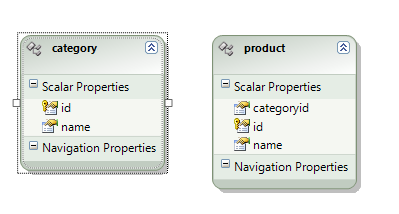
<p>Due to the fact that the default MySQL database engine does not support foreign keys, there is no relationship between the two entities generated by Entity Framework. After a frustrating experience trying to manually add the association for Product-&gt;Category using the EF designer, I decided to add it manually by extending the generated partial class. This will allow us to easily access the category to which a product belongs.</p>
<div class="csharpcode">
<pre class="brush: csharp;"> public partial class Product
 {
     private Category _category;

     public Category Category
     {
         get
         {
             if (_category == null)
            {
                var categoryRepository = new CategoryRepository();

                var cat = categoryRepository.Select(categoryid);

                _category = cat.First();
            }

            return _category;
        }
    }          
}
</pre>
<pre>&nbsp;</pre>
</div>
<style type="text/css">
<p>.csharpcode, .csharpcode pre
{
	font-size: small;
	color: black;
	font-family: consolas, "Courier New", courier, monospace;
	background-color: #ffffff;
	/*white-space: pre;*/
}
.csharpcode pre { margin: 0em; }
.csharpcode .rem { color: #008000; }
.csharpcode .kwrd { color: #0000ff; }
.csharpcode .str { color: #006080; }
.csharpcode .op { color: #0000c0; }
.csharpcode .preproc { color: #cc6633; }
.csharpcode .asp { background-color: #ffff00; }
.csharpcode .html { color: #800000; }
.csharpcode .attr { color: #ff0000; }
.csharpcode .alt 
{
	background-color: #f4f4f4;
	width: 100%;
	margin: 0em;
}
.csharpcode .lnum { color: #606060; }</style>
<p><strong>Using the MVC pattern</strong></p>
<p>If you are unfamiliar with MVC pattern, I suggest you check <a href="http://en.wikipedia.org/wiki/Model-view-controller" target="_blank" rel="noopener">this</a> out for a little background. Also, information specifically concerning ASP.NET MVC can be found <a href="http://www.asp.net/mvc/" target="_blank" rel="noopener">here</a>.</p>
<p>We have already fulfilled the &#8220;M” in MVC by generating our model using Entity Framework. These objects will serve as a strongly typed data model for the database we wish to access. The next step is to define the behavior of our sample application. This will be done in our Controller objects, the “C” in MVC.</p>
<p><strong>Working with ASP.NET MVC</strong></p>
<p>When we created our new ASP.NET MVC project, a few folders were created automatically. As we have seen already, a <em>Models</em> folder was created and can be used to store the code files representing our data model. To create our Controllers, we are going to right-click on the <em>Controllers </em>folder and select <em>Add-&gt;Controller…</em> Here we will create a new controller named ProductController and tick the option to automatically generate Create, Update, and Delete stubs. (Note: We are going to use the default routing table that ships with ASP.NET MVC. This can be edited in Global.asax.cs)</p>
<p><a href="https://pattersonc.com/wp-content/uploads/2009/04/tmpd5c8.png"><img loading="lazy" decoding="async" style="border-right-width: 0px; display: inline; border-top-width: 0px; border-bottom-width: 0px; border-left-width: 0px" title="tmpD5C8" border="0" alt="tmpD5C8" src="https://pattersonc.com/wp-content/uploads/2009/04/tmpd5c8-thumb.png" width="403" height="164"></a></p>
<p><strong>Listing our data</strong></p>
<p>To generate a list of our data we are going to place the following data fetching code into the Index method stub of our Controller and pass the results to a View.</p>
<div class="csharpcode">
<pre class="brush: csharp;">//
// GET: /Product/

public ActionResult Index()
{
    ProductRepository productRepository = new ProductRepository();

    return View(productRepository.Select().ToList());
}
</pre>
<pre>&nbsp;</pre>
</div>
<style type="text/css">
<p>.csharpcode, .csharpcode pre
{
	font-size: small;
	color: black;
	font-family: consolas, "Courier New", courier, monospace;
	background-color: #ffffff;
	/*white-space: pre;*/
}
.csharpcode pre { margin: 0em; }
.csharpcode .rem { color: #008000; }
.csharpcode .kwrd { color: #0000ff; }
.csharpcode .str { color: #006080; }
.csharpcode .op { color: #0000c0; }
.csharpcode .preproc { color: #cc6633; }
.csharpcode .asp { background-color: #ffff00; }
.csharpcode .html { color: #800000; }
.csharpcode .attr { color: #ff0000; }
.csharpcode .alt 
{
	background-color: #f4f4f4;
	width: 100%;
	margin: 0em;
}
.csharpcode .lnum { color: #606060; }</style>
<p>Now, we create the view to display this data. Locate the <em>Views </em>folder that was created by the ASP.NET MVC project template and add a subfolder with the name Product. Notice that this folder’s name matches that of the prefix of our controller. This is by design. ASP.NET MVC provides this convention to make our lives a bit easier (<a href="http://en.wikipedia.org/wiki/Convention_over_Configuration" target="_blank" rel="noopener">CoC</a>). The ASP.NET MVC framework will first look for the subfolder that matches your controller. If it is not found, it will then look in the Shared subfolder. Now, right-click the <em>Product</em> folder and select <em>Add-&gt;View… </em>Enter the view name Index, select to create a strongly-typed view, select the appropriate data model class, and select <em>List</em> from the view content drop down.</p>
<p>&nbsp;<a href="https://pattersonc.com/wp-content/uploads/2009/04/tmpb031.png"><img loading="lazy" decoding="async" style="border-right-width: 0px; display: inline; border-top-width: 0px; border-bottom-width: 0px; border-left-width: 0px" title="tmpB031" border="0" alt="tmpB031" src="https://pattersonc.com/wp-content/uploads/2009/04/tmpb031-thumb.png" width="386" height="410"></a></p>
<p>Take a look a the newly created View. There is code already generated for viewing a list of our object. This is convenient, but we are going to modify it slightly to display the data in a more meaningful manner.</p>
<pre class="brush: xml;">&lt;% foreach (var item in Model) { %&gt;

  &lt;tr&gt;
      &lt;td&gt;
          &lt;%= Html.ActionLink("Edit", "Edit", new { id=item.id }) %&gt; |
          &lt;%= Html.ActionLink("Details", "Details", new { id=item.id })%&gt;
      &lt;/td&gt;
      &lt;td&gt;
          &lt;%= Html.Encode(item.Category.name) %&gt;
      &lt;/td&gt;
      &lt;td&gt;
          &lt;%= Html.Encode(item.id) %&gt;
      &lt;/td&gt;
      &lt;td&gt;
          &lt;%= Html.Encode(item.name) %&gt;
      &lt;/td&gt;
  &lt;/tr&gt;

&lt;% } %&gt;
</pre>
<div class="csharpcode">&nbsp;</div>
<style type="text/css">
<p>.csharpcode, .csharpcode pre
{
	font-size: small;
	color: black;
	font-family: consolas, "Courier New", courier, monospace;
	background-color: #ffffff;
	/*white-space: pre;*/
}
.csharpcode pre { margin: 0em; }
.csharpcode .rem { color: #008000; }
.csharpcode .kwrd { color: #0000ff; }
.csharpcode .str { color: #006080; }
.csharpcode .op { color: #0000c0; }
.csharpcode .preproc { color: #cc6633; }
.csharpcode .asp { background-color: #ffff00; }
.csharpcode .html { color: #800000; }
.csharpcode .attr { color: #ff0000; }
.csharpcode .alt 
{
	background-color: #f4f4f4;
	width: 100%;
	margin: 0em;
}
.csharpcode .lnum { color: #606060; }</style>
<p>Notice that we are accessing the Category property of the Product object. This was made possible by extending the Product partial class to include this property. When we run this we should see a listing of our products. (Note: Database backup with test data is included with source download.)</p>
<p><a href="https://pattersonc.com/wp-content/uploads/2009/04/tmp98bc.png"><img loading="lazy" decoding="async" style="border-right-width: 0px; display: inline; border-top-width: 0px; border-bottom-width: 0px; border-left-width: 0px" title="tmp98BC" border="0" alt="tmp98BC" src="https://pattersonc.com/wp-content/uploads/2009/04/tmp98bc-thumb.png" width="408" height="305"></a></p>
<p>&nbsp;</p>
<p><strong>Adding and Editing data</strong></p>
<p>For the case of adding and editing our data, we are going to add two controller methods. The first will process the http GET command and return the View used for adding or editing our data. The second will process the http POST command. This overloaded method will be marked with a special attribute to designate that it is responsible for handling POSTs for this action. So for adding data we must specify our Create methods.</p>
<div class="csharpcode">
<pre class="brush: csharp;">//
// GET: /Product/Create

public ActionResult Create()
{
   return View();
} 

//
// POST: /Product/Create

[AcceptVerbs(HttpVerbs.Post)]
public ActionResult Create(FormCollection formCollection)
{
  try
  {
      Product product = new Product();
      TryUpdateModel(product);

      var productRepo = new ProductRepository();
      productRepo.Add(product);
      productRepo.Save();

      return RedirectToAction("Index");
  }
  catch
  {
       return View();
  }
}
</pre>
<pre>&nbsp;</pre>
</div>
<style type="text/css">
<p>.csharpcode, .csharpcode pre
{
	font-size: small;
	color: black;
	font-family: consolas, "Courier New", courier, monospace;
	background-color: #ffffff;
	/*white-space: pre;*/
}
.csharpcode pre { margin: 0em; }
.csharpcode .rem { color: #008000; }
.csharpcode .kwrd { color: #0000ff; }
.csharpcode .str { color: #006080; }
.csharpcode .op { color: #0000c0; }
.csharpcode .preproc { color: #cc6633; }
.csharpcode .asp { background-color: #ffff00; }
.csharpcode .html { color: #800000; }
.csharpcode .attr { color: #ff0000; }
.csharpcode .alt 
{
	background-color: #f4f4f4;
	width: 100%;
	margin: 0em;
}
.csharpcode .lnum { color: #606060; }</style>
<style type="text/css">
<p>.csharpcode, .csharpcode pre
{
	font-size: small;
	color: black;
	font-family: consolas, "Courier New", courier, monospace;
	background-color: #ffffff;
	/*white-space: pre;*/
}
.csharpcode pre { margin: 0em; }
.csharpcode .rem { color: #008000; }
.csharpcode .kwrd { color: #0000ff; }
.csharpcode .str { color: #006080; }
.csharpcode .op { color: #0000c0; }
.csharpcode .preproc { color: #cc6633; }
.csharpcode .asp { background-color: #ffff00; }
.csharpcode .html { color: #800000; }
.csharpcode .attr { color: #ff0000; }
.csharpcode .alt 
{
	background-color: #f4f4f4;
	width: 100%;
	margin: 0em;
}
.csharpcode .lnum { color: #606060; }</style>
<p>And for editing our data will provide Edit methods.</p>
<div class="csharpcode">
<pre class="brush: csharp;">public ActionResult Edit(int id)
{           
  var productRepo = new ProductRepository();
  var product = productRepo.Select(id);

  return View(product);
}

//
// POST: /Product/Edit/5

[AcceptVerbs(HttpVerbs.Post)]
public ActionResult Edit(int id, FormCollection collection)
{
  try
  {
      var productRepo = new ProductRepository();
      var product = productRepo.Select(id);

      TryUpdateModel(product);

      productRepo.Save();

      return RedirectToAction("Index");
  }
  catch
  {
      return View();
  }
}
</pre>
<pre>&nbsp;</pre>
</div>
<style type="text/css">
<p>.csharpcode, .csharpcode pre
{
	font-size: small;
	color: black;
	font-family: consolas, "Courier New", courier, monospace;
	background-color: #ffffff;
	/*white-space: pre;*/
}
.csharpcode pre { margin: 0em; }
.csharpcode .rem { color: #008000; }
.csharpcode .kwrd { color: #0000ff; }
.csharpcode .str { color: #006080; }
.csharpcode .op { color: #0000c0; }
.csharpcode .preproc { color: #cc6633; }
.csharpcode .asp { background-color: #ffff00; }
.csharpcode .html { color: #800000; }
.csharpcode .attr { color: #ff0000; }
.csharpcode .alt 
{
	background-color: #f4f4f4;
	width: 100%;
	margin: 0em;
}
.csharpcode .lnum { color: #606060; }</style>
<style type="text/css">
<p>.csharpcode, .csharpcode pre
{
	font-size: small;
	color: black;
	font-family: consolas, "Courier New", courier, monospace;
	background-color: #ffffff;
	/*white-space: pre;*/
}
.csharpcode pre { margin: 0em; }
.csharpcode .rem { color: #008000; }
.csharpcode .kwrd { color: #0000ff; }
.csharpcode .str { color: #006080; }
.csharpcode .op { color: #0000c0; }
.csharpcode .preproc { color: #cc6633; }
.csharpcode .asp { background-color: #ffff00; }
.csharpcode .html { color: #800000; }
.csharpcode .attr { color: #ff0000; }
.csharpcode .alt 
{
	background-color: #f4f4f4;
	width: 100%;
	margin: 0em;
}
.csharpcode .lnum { color: #606060; }</style>
<p>Notice that the Edit implementation responsible for handling GETs differs from our Create GET implementation. It must fetch the item that we will be editing and hand it off to the view. There is one more step before we are ready to create our Views. For the sake of user friendliness we are going to provide a drop down list to allow the user to select the category by name instead of requiring them to input a Category id. To accomplish this we must fetch the collection of Categories and make it available to the View. For simplicities sake, we will do this in the Controller’s constructor.</p>
<div class="csharpcode">
<pre>&nbsp;</pre>
<pre class="brush: csharp;">public ProductController() : base()
{
      var categoryRepo = new CategoryRepository();
      ViewData["categories"] = categoryRepo.Select().ToList();
}
</pre>
<pre>&nbsp;</pre>
</div>
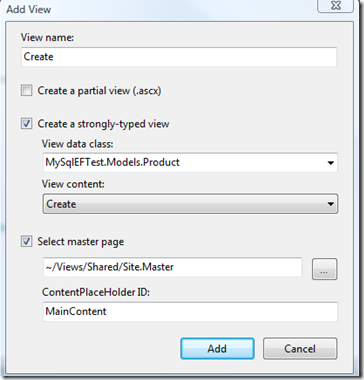
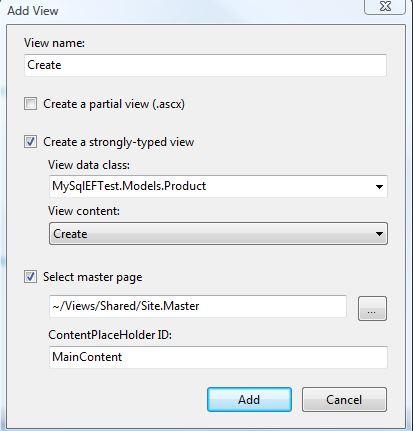
<p>Now we are ready create our Views. Just like with the Create View we will right-click on the Product subfolder in the View folder and select Add-&gt;View…</p>
<p><a href="https://pattersonc.com/wp-content/uploads/2009/04/tmpe357.png"><img loading="lazy" decoding="async" style="border-right-width: 0px; display: inline; border-top-width: 0px; border-bottom-width: 0px; border-left-width: 0px" title="tmpE357" border="0" alt="tmpE357" src="https://pattersonc.com/wp-content/uploads/2009/04/tmpe357-thumb.png" width="364" height="380"></a></p>
<p><a href="https://pattersonc.com/wp-content/uploads/2009/04/tmp8928.png"><img loading="lazy" decoding="async" style="border-right-width: 0px; display: inline; border-top-width: 0px; border-bottom-width: 0px; border-left-width: 0px" title="tmp8928" border="0" alt="tmp8928" src="https://pattersonc.com/wp-content/uploads/2009/04/tmp8928-thumb.png" width="366" height="387"></a></p>
<p>Again, we will edit the generated code for the Views to enhance the user experience.</p>
<div class="csharpcode">
<pre class="brush: xml;"> &lt;% using (Html.BeginForm()) {%&gt;

     &lt;fieldset&gt;
         &lt;legend&gt;Fields&lt;/legend&gt;
         &lt;p&gt;
              &lt;label for="Category"&gt;Category:&lt;/label&gt;
             &lt;%= Html.DropDownList("categoryid", new SelectList((IEnumerable)ViewData["categories"], "id", "name")) %&gt;
             &lt;%= Html.ValidationMessage("categoryid", "*") %&gt;
         &lt;/p&gt;
        &lt;p&gt;
            &lt;label for="name"&gt;Name:&lt;/label&gt;
            &lt;%= Html.TextBox("name") %&gt;
            &lt;%= Html.ValidationMessage("name", "*") %&gt;
        &lt;/p&gt;
        &lt;p&gt;
            &lt;input type="submit" value="Create" /&gt;
        &lt;/p&gt;
    &lt;/fieldset&gt;

&lt;% } %&gt;

</pre>
<pre>&nbsp;</pre>
</div>
<style type="text/css">
<p>.csharpcode, .csharpcode pre
{
	font-size: small;
	color: black;
	font-family: consolas, "Courier New", courier, monospace;
	background-color: #ffffff;
	/*white-space: pre;*/
}
.csharpcode pre { margin: 0em; }
.csharpcode .rem { color: #008000; }
.csharpcode .kwrd { color: #0000ff; }
.csharpcode .str { color: #006080; }
.csharpcode .op { color: #0000c0; }
.csharpcode .preproc { color: #cc6633; }
.csharpcode .asp { background-color: #ffff00; }
.csharpcode .html { color: #800000; }
.csharpcode .attr { color: #ff0000; }
.csharpcode .alt 
{
	background-color: #f4f4f4;
	width: 100%;
	margin: 0em;
}
.csharpcode .lnum { color: #606060; }</style>
<p>And…</p>
<pre class="brush: xml;">&lt;% using (Html.BeginForm()) {%&gt;

     &lt;fieldset&gt;
         &lt;legend&gt;Fields&lt;/legend&gt;
         &lt;p&gt;
             &lt;label for="id"&gt;ID:&lt;/label&gt;
             &lt;%= Html.Encode(Model.id) %&gt;
             
         &lt;/p&gt;
        &lt;p&gt;
            &lt;label for="category"&gt;Category:&lt;/label&gt;
            &lt;%= Html.DropDownList("categoryid", new SelectList((IEnumerable)ViewData["categories"], "id", "name")) %&gt;
            &lt;%= Html.ValidationMessage("categoryid", "*") %&gt;
        &lt;/p&gt;
        &lt;p&gt;
            &lt;label for="name"&gt;Name:&lt;/label&gt;
            &lt;%= Html.TextBox("name", Model.name) %&gt;
            &lt;%= Html.ValidationMessage("name", "*") %&gt;
        &lt;/p&gt;
        &lt;p&gt;
            &lt;input type="submit" value="Save" /&gt;
        &lt;/p&gt;
    &lt;/fieldset&gt;

&lt;% } %&gt;

</pre>
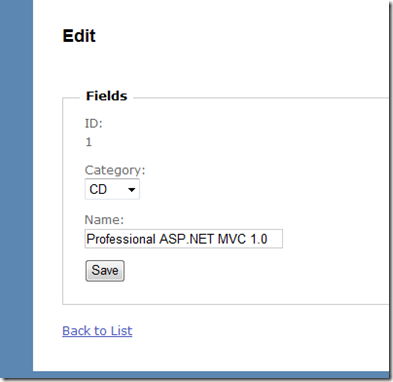
<p>This will produce pages that allow the user to easily create and edit data.</p>
<p><a href="https://pattersonc.com/wp-content/uploads/2009/04/tmp5c11.png"><img loading="lazy" decoding="async" style="border-right-width: 0px; display: inline; border-top-width: 0px; border-bottom-width: 0px; border-left-width: 0px" title="tmp5C11" border="0" alt="tmp5C11" src="https://pattersonc.com/wp-content/uploads/2009/04/tmp5c11-thumb.png" width="393" height="382"></a></p>
<p>That’s it. Now you are ready to rock with MySQL, Entity Framework, and ASP.NET MVC!</p>
<p><strong>What about our test project?</strong></p>
<p>Remember in <a href="http://pattersoncprod.wpengine.com/index.php/2009/04/01/using-mysql-with-entity-framework-and-aspnet-mvc-%e2%80%93-part-i/" target="_blank" rel="noopener">Part I</a> when I asked you to create a test project along with our ASP.NET MVC application? I have decided to leave unit tests out of this series for the sake of simplicity and the fact that Visual Studio Test Projects are only supported in the Professional version of Visual Studio. In a future post I will cover writing unit tests for ASP.NET MVC projects using an open source unit test framework like nUnit or mbUnit. At that time, I will attempt to demonstrate developing our sample project following a <a href="http://en.wikipedia.org/wiki/Test-driven_development" target="_blank" rel="noopener">Test Driven Development</a> technique.</p>
<p><strong>Summary</strong></p>
<p>We were able to easily to generate a data model for a MySQL database schema using Entity Framework.</p>
<p>We were able to access our data model from an ASP.NET MVC project. We created strongly typed Views that allowed us dictate exactly how we wanted our pages to render for simple CRUD scenarios.</p>
<p>For more advanced scenarios using ASP.NET MVC, such as adding validation to your data model and securing your application, check out the free <a href="http://weblogs.asp.net/scottgu/archive/2009/03/10/free-asp-net-mvc-ebook-tutorial.aspx" target="_blank" rel="noopener">NerdDinner ASP.NET MVC Tutorial</a>.</p>
<p>&nbsp;</p>
<div style="padding-bottom: 0px; margin: 0px; padding-left: 0px; padding-right: 0px; display: inline; float: none; padding-top: 0px" id="scid:FF7EC618-8FBE-49a5-B908-2339AF2ABCDF:674012e8-ec69-4509-94a1-d2aab7797383" class="wlWriterSmartContent">
<div>Download File &#8211; <a href="https://pattersonc.com/wp-content/uploads/2009/04/tmp5669.zip" target="_self" rel="noopener">Source</a></div>
</div>
		</div><!-- .entry-content -->
	</div><!-- .post-content-->

</article><!-- #post-## -->

<article id="post-22" class="post-22 post type-post status-publish format-standard hentry category-code tag-aspnet-mvc tag-entity-framework tag-mysql without-featured-image" aria-label="Using MySQL with Entity Framework and ASP.NET MVC &ndash; Part I">
	<div class="post-content">
		<header class="entry-header">
							<h2 class="entry-title">
					<a href="https://pattersonc.com/?p=22" rel="bookmark">Using MySQL with Entity Framework and ASP.NET MVC &ndash; Part I</a>
				</h2>
			
						<p class="entry-byline">
		<!-- Create an avatar link -->
		<a href="https://pattersonc.com/?author=1" title="Posts by Christopher Patterson">
			<img alt='' src='https://secure.gravatar.com/avatar/015695cda2665751a24ac8c507309eed49adcc9b554af02c2ab58a63999d24da?s=44&#038;d=mm&#038;r=g' srcset='https://secure.gravatar.com/avatar/015695cda2665751a24ac8c507309eed49adcc9b554af02c2ab58a63999d24da?s=88&#038;d=mm&#038;r=g 2x' class='avatar avatar-44 photo' height='44' width='44' loading='lazy' decoding='async'/>		</a>

		<!-- Create an author post link -->
		<a class="entry-byline-author" href="https://pattersonc.com/?author=1">
			Christopher Patterson		</a>
		<span class="entry-byline-on">on</span>
		<span class="entry-byline-date">April 1, 2009</span>
	</p>
				</header>
		
		<div class="entry-content">

			<p>I would like to take a look at creating an object model for a MySQL database schema in .NET and accessing that data with LINQ queries.</p>
<p>After some research on the subject I figured the path of least resistance would be to try out Microsoft’s latest data access technology, Entity Framework. Now, I know people are not thrilled with some of the apparent short comings of EF – <a href="http://www.chadmoran.com/blog/tag/adonet-ef" target="_blank" rel="noopener">friend’s don’t let friend’s use EF</a>, but still we march on.</p>
<p><strong>Prerequisites</strong></p>
<ul>
<li><a href="http://www.microsoft.com/downloads/details.aspx?FamilyID=AB99342F-5D1A-413D-8319-81DA479AB0D7&amp;displaylang=en" target="_blank" rel="noopener">.NET 3.5 Service Pack 1</a> </li>
<li><a href="http://dev.mysql.com/downloads/mysql/5.1.html#downloads" target="_blank" rel="noopener">MySQL Database Engine</a> </li>
<li><a href="http://dev.mysql.com/downloads/gui-tools/5.0.html" target="_blank" rel="noopener">MySQL GUI Tools</a> (recommended and used in this example) </li>
<li><a href="http://dev.mysql.com/downloads/connector/net/6.0.html" target="_blank" rel="noopener">MySQL’s Latest ADO.Net Provider</a> (<strong>Update:</strong> requires Visual Studio Professional Edition. see comments) </li>
</ul>
<p>Also, I am using ASP.NET MVC as our test harness so you will also need the ASP.NET MVC Framework installed along side Visual Studio. You can download that <a href="http://www.microsoft.com/downloads/details.aspx?FamilyID=53289097-73ce-43bf-b6a6-35e00103cb4b&amp;displaylang=en">here</a>. If you are unfamiliar with ASP.NET MVC, I suggest you get with the <a href="http://haacked.com/archive/2009/03/10/chapter-one-pro-aspnetmvc.aspx" target="_blank" rel="noopener">program</a>.</p>
<p><strong>Getting Started</strong></p>
<p>I am going to assume that you are able to get the MySQL database engine along with the GUI tools installed. If not, read more <a href="http://dev.mysql.com/doc/refman/5.1/en/installing.html" target="_blank" rel="noopener">here</a>.</p>
<p>Once you have your MySQL database up and running open the <em>MySQL Administrator. </em>Fill in your connection information and credentials and select <em>Ok</em>.</p>
<p>Next, we are going to select the Catalogs icon and create a new schema (or database for SQL Server people). Right-click in the <em>Schemata</em> list and select <em>Create New Schema</em>.</p>
<p><a href="https://pattersonc.com/wp-content/uploads/2009/04/tmp1867.png"><img loading="lazy" decoding="async" style="border-right-width: 0px; display: inline; border-top-width: 0px; border-bottom-width: 0px; border-left-width: 0px" title="tmp1867" border="0" alt="tmp1867" src="https://pattersonc.com/wp-content/uploads/2009/04/tmp1867-thumb.png" width="165" height="244" /></a></p>
<p>Enter your new schema name and select <em>Ok</em>.</p>
<p><a href="https://pattersonc.com/wp-content/uploads/2009/04/tmpb89e.png"><img loading="lazy" decoding="async" style="border-right-width: 0px; display: inline; border-top-width: 0px; border-bottom-width: 0px; border-left-width: 0px" title="tmpB89E" border="0" alt="tmpB89E" src="https://pattersonc.com/wp-content/uploads/2009/04/tmpb89e-thumb.png" width="244" height="136" /></a></p>
<p>Open the <em>MySQL Query Browser</em> from the <em>Tools</em> menu. Open and <em>New Script Tab</em> from the <em>File</em> menu and run the following scripts. This will create two tables. (note: we’re using the default MyISAM database engine)</p>
<pre class="brush: sql;">CREATE TABLE  `demotest`.`category` (

  `id` int(10) unsigned NOT NULL AUTO_INCREMENT,

  `name` varchar(45) NOT NULL,

  PRIMARY KEY (`id`)

) ENGINE=MyISAM AUTO_INCREMENT=2 DEFAULT CHARSET=latin1;

DROP TABLE IF EXISTS `demotest`.`product`;

CREATE TABLE  `demotest`.`product` (

  `id` int(10) unsigned NOT NULL AUTO_INCREMENT,

  `name` varchar(45) NOT NULL,

  `categoryid` varchar(45) NOT NULL,

  PRIMARY KEY (`id`)

) ENGINE=MyISAM AUTO_INCREMENT=2 DEFAULT CHARSET=latin1;</pre>
<p>Now, in Visual Studio create a new <em>ASP.NET MVC Web Application. </em>Select, <em>Yes </em>to create a Unit Test project along side the web application. We may use this later.</p>
<p></p>
<pre><a href="https://pattersonc.com/wp-content/uploads/2009/04/tmpf6a8.png"><img loading="lazy" decoding="async" style="border-right-width: 0px; display: inline; border-top-width: 0px; border-bottom-width: 0px; border-left-width: 0px" title="tmpF6A8" border="0" alt="tmpF6A8" src="https://pattersonc.com/wp-content/uploads/2009/04/tmpf6a8-thumb.png" width="427" height="154" /></a></pre>
<p>Next, in your Visual Studio Server Explorer create a new data connection. Change your data source to MySQL and enter your database information.</p>
<p><a href="https://pattersonc.com/wp-content/uploads/2009/04/tmp5a7a.png"><img loading="lazy" decoding="async" style="border-right-width: 0px; display: inline; border-top-width: 0px; border-bottom-width: 0px; border-left-width: 0px" title="tmp5A7A" border="0" alt="tmp5A7A" src="https://pattersonc.com/wp-content/uploads/2009/04/tmp5a7a-thumb.png" width="244" height="233" /></a></p>
<p>Notice you can now access your MySQL database from the Server explorer.</p>
<p><a href="https://pattersonc.com/wp-content/uploads/2009/04/tmp6d96.png"><img loading="lazy" decoding="async" style="border-right-width: 0px; display: inline; border-top-width: 0px; border-bottom-width: 0px; border-left-width: 0px" title="tmp6D96" border="0" alt="tmp6D96" src="https://pattersonc.com/wp-content/uploads/2009/04/tmp6d96-thumb.png" width="228" height="244" /></a></p>
<p>The next step is to add the Entity Framework model to our project. Right-Click on the Model folder that is created by the ASP.NET MVC project template and select <em>Add New Item. </em>Locate the ADO.NET Entity Data Model option and press <em>Ok</em>.</p>
<p><em><a href="https://pattersonc.com/wp-content/uploads/2009/04/tmpaec3.png"><img loading="lazy" decoding="async" style="border-right-width: 0px; display: inline; border-top-width: 0px; border-bottom-width: 0px; border-left-width: 0px" title="tmpAEC3" border="0" alt="tmpAEC3" src="https://pattersonc.com/wp-content/uploads/2009/04/tmpaec3-thumb.png" width="430" height="199" /></a></em></p>
<p>Select the <em>Generate from database</em> option and click <em>Next</em>. Select, Yes to putting your connection string information in your web.config. This might not be the best option for your “real world” apps but it is just fine for us. Now select the option to generate objects for our tables and input your Model’s namespace.</p>
<p><a href="https://pattersonc.com/wp-content/uploads/2009/04/tmp4c6a.png"><img loading="lazy" decoding="async" style="border-right-width: 0px; display: inline; border-top-width: 0px; border-bottom-width: 0px; border-left-width: 0px" title="tmp4C6A" border="0" alt="tmp4C6A" src="https://pattersonc.com/wp-content/uploads/2009/04/tmp4c6a-thumb.png" width="459" height="431" /></a></p>
<p>Select <em>Finish </em>and the EF magic happens.</p>
<p><a href="https://pattersonc.com/wp-content/uploads/2009/04/tmpe92c.png"><img loading="lazy" decoding="async" style="border-right-width: 0px; display: inline; border-top-width: 0px; border-bottom-width: 0px; border-left-width: 0px" title="tmpE92C" border="0" alt="tmpE92C" src="https://pattersonc.com/wp-content/uploads/2009/04/tmpe92c-thumb.png" width="244" height="133" /></a></p>
<p>Now that our EF model has been generated we are going to wrap that in a simple repository pattern. Here is what the repository type will look like for Products.<br />
  </p>
<pre><pre class="brush: csharp;">public class ProductRepository
{

    MySqlEntities mySqlEntities = new MySqlEntities();

    public IQueryable&lt;Product&gt; Select()

    {

        var result = from p in mySqlEntities.ProductSet

                     select p;

        return result;

    }

    public IQueryable&lt;Product&gt; Select(int id)

    {

        var result = from p in Select()

                     where p.id == id

                     select p;

        return result;

    }

    public void Add(Product product)

    {

        mySqlEntities.AddToProductSet(product);

    }

    public void Delete(Product product)

    {

        mySqlEntities.DeleteObject(product);

    }

    public void Save()

    {

        mySqlEntities.SaveChanges();

    }
}
</pre>
<p>We will do the same for Categories…</p>
</p>
<pre class="brush: csharp;">public class CategoryRepository
{

    MySqlEntities mySqlEntities = new MySqlEntities();

    public IQueryable&lt;Category&gt; Select()

    {

        var result = from p in mySqlEntities.CategorySet1

                     select p;

        return result;

    }

    public IQueryable&lt;Category&gt; Select(int id)

    {

        var result = from p in Select()

                     where p.id == id

                     select p;

        return result;

    }

    public void Add(Category category)

    {

        mySqlEntities.AddToCategorySet1(category);

    }

    public void Delete(Category category)

    {

        mySqlEntities.DeleteObject(category);

    }

    public void Save()

    {

        mySqlEntities.SaveChanges();

    }

}</pre>
<p>
  <br /><strong>So far…</strong></p>
</p>
<p>We have created our database schema in MySQL using the MySQL GUI Tools. In Visual Studio, we added a connection to our database in the Server Explorer. We generated a Entity Framework object model for or database schema, and wrapped that model with repositories.</p>
<p>Next time we will use those repositories to access and modify our data from ASP.NET MVC controllers. Also, we will add views to round out our demo with a simple user interface for Add, Edit, and Create scenarios.</p>
<p><strong>Source</strong></p>
<div style="padding-bottom: 0px; margin: 0px; padding-left: 0px; padding-right: 0px; display: inline; float: none; padding-top: 0px" id="scid:FF7EC618-8FBE-49a5-B908-2339AF2ABCDF:2a6ed7d4-832d-474e-a77a-5c71bde18639" class="wlWriterSmartContent">
<div>Download File &#8211; <a href="https://pattersonc.com/wp-content/uploads/2009/04/tmpddf9.zip" target="_self" rel="noopener">Source</a></div>
</div>
		</div><!-- .entry-content -->
	</div><!-- .post-content-->

</article><!-- #post-## -->
			</div>

					</main><!-- #main -->
			</div><!-- #primary -->


	</div><!-- #content -->
</div><!-- #page .container -->

<footer id="colophon" class="site-footer">
	<div class="container">
		
		<div class="footer-bottom">
			<div class="footer-tagline">
				<div class="site-info">
					 Theme by <a href="https://www.studiopress.com/" rel="noreferrer noopener">StudioPress</a>.				</div>
			</div><!-- .footer-tagline -->
					</div><!-- .footer-bottom -->
	</div><!-- .container -->
</footer><!-- #colophon -->

	<script type="text/javascript">
		function genesisBlocksShare( url, title, w, h ){
			var left = ( window.innerWidth / 2 )-( w / 2 );
			var top  = ( window.innerHeight / 2 )-( h / 2 );
			return window.open(url, title, 'toolbar=no, location=no, directories=no, status=no, menubar=no, scrollbars=no, resizable=no, copyhistory=no, width=600, height=600, top='+top+', left='+left);
		}
	</script>
	<script src="http://pattersonc.com/wp-content/plugins/genesis-blocks/dist/assets/js/dismiss.js?ver=1730123456" id="genesis-blocks-dismiss-js-js"></script>
<script id="genesis-block-theme-js-js-extra">
var genesis_block_theme_js_vars = {"ajaxurl":"https://pattersonc.com/wp-admin/admin-ajax.php"};
//# sourceURL=genesis-block-theme-js-js-extra
</script>
<script src="http://pattersonc.com/wp-content/themes/genesis-block-theme/js/genesis-block-theme.js?ver=1.0.0" id="genesis-block-theme-js-js"></script>
<script id="wp-emoji-settings" type="application/json">
{"baseUrl":"https://s.w.org/images/core/emoji/17.0.2/72x72/","ext":".png","svgUrl":"https://s.w.org/images/core/emoji/17.0.2/svg/","svgExt":".svg","source":{"concatemoji":"http://pattersonc.com/wp-includes/js/wp-emoji-release.min.js?ver=6.9.4"}}
</script>
<script type="module">
/*! This file is auto-generated */
const a=JSON.parse(document.getElementById("wp-emoji-settings").textContent),o=(window._wpemojiSettings=a,"wpEmojiSettingsSupports"),s=["flag","emoji"];function i(e){try{var t={supportTests:e,timestamp:(new Date).valueOf()};sessionStorage.setItem(o,JSON.stringify(t))}catch(e){}}function c(e,t,n){e.clearRect(0,0,e.canvas.width,e.canvas.height),e.fillText(t,0,0);t=new Uint32Array(e.getImageData(0,0,e.canvas.width,e.canvas.height).data);e.clearRect(0,0,e.canvas.width,e.canvas.height),e.fillText(n,0,0);const a=new Uint32Array(e.getImageData(0,0,e.canvas.width,e.canvas.height).data);return t.every((e,t)=>e===a[t])}function p(e,t){e.clearRect(0,0,e.canvas.width,e.canvas.height),e.fillText(t,0,0);var n=e.getImageData(16,16,1,1);for(let e=0;e<n.data.length;e++)if(0!==n.data[e])return!1;return!0}function u(e,t,n,a){switch(t){case"flag":return n(e,"\ud83c\udff3\ufe0f\u200d\u26a7\ufe0f","\ud83c\udff3\ufe0f\u200b\u26a7\ufe0f")?!1:!n(e,"\ud83c\udde8\ud83c\uddf6","\ud83c\udde8\u200b\ud83c\uddf6")&&!n(e,"\ud83c\udff4\udb40\udc67\udb40\udc62\udb40\udc65\udb40\udc6e\udb40\udc67\udb40\udc7f","\ud83c\udff4\u200b\udb40\udc67\u200b\udb40\udc62\u200b\udb40\udc65\u200b\udb40\udc6e\u200b\udb40\udc67\u200b\udb40\udc7f");case"emoji":return!a(e,"\ud83e\u1fac8")}return!1}function f(e,t,n,a){let r;const o=(r="undefined"!=typeof WorkerGlobalScope&&self instanceof WorkerGlobalScope?new OffscreenCanvas(300,150):document.createElement("canvas")).getContext("2d",{willReadFrequently:!0}),s=(o.textBaseline="top",o.font="600 32px Arial",{});return e.forEach(e=>{s[e]=t(o,e,n,a)}),s}function r(e){var t=document.createElement("script");t.src=e,t.defer=!0,document.head.appendChild(t)}a.supports={everything:!0,everythingExceptFlag:!0},new Promise(t=>{let n=function(){try{var e=JSON.parse(sessionStorage.getItem(o));if("object"==typeof e&&"number"==typeof e.timestamp&&(new Date).valueOf()<e.timestamp+604800&&"object"==typeof e.supportTests)return e.supportTests}catch(e){}return null}();if(!n){if("undefined"!=typeof Worker&&"undefined"!=typeof OffscreenCanvas&&"undefined"!=typeof URL&&URL.createObjectURL&&"undefined"!=typeof Blob)try{var e="postMessage("+f.toString()+"("+[JSON.stringify(s),u.toString(),c.toString(),p.toString()].join(",")+"));",a=new Blob([e],{type:"text/javascript"});const r=new Worker(URL.createObjectURL(a),{name:"wpTestEmojiSupports"});return void(r.onmessage=e=>{i(n=e.data),r.terminate(),t(n)})}catch(e){}i(n=f(s,u,c,p))}t(n)}).then(e=>{for(const n in e)a.supports[n]=e[n],a.supports.everything=a.supports.everything&&a.supports[n],"flag"!==n&&(a.supports.everythingExceptFlag=a.supports.everythingExceptFlag&&a.supports[n]);var t;a.supports.everythingExceptFlag=a.supports.everythingExceptFlag&&!a.supports.flag,a.supports.everything||((t=a.source||{}).concatemoji?r(t.concatemoji):t.wpemoji&&t.twemoji&&(r(t.twemoji),r(t.wpemoji)))});
//# sourceURL=http://pattersonc.com/wp-includes/js/wp-emoji-loader.min.js
</script>

</body>
</html>